
Your organization's logo and colours
Your logo, favicon and colours are set on Settings, Branding. The organizations beneath yours use them too, unless they set their own.
Logo and favicon
-
In the sidebar, choose Settings, then the Branding tab.
-
Under Current logo, choose a file or drag one in: a PNG with a transparent background, about 320 × 80 pixels, up to 2 MB.
-
Under Current favicon, add the small icon for the browser tab: a square PNG, 64 × 64 (or 512 × 512) pixels, up to 512 KB. Its preview shows it at 32 × 32 pixels.
-
Choose Save Settings.
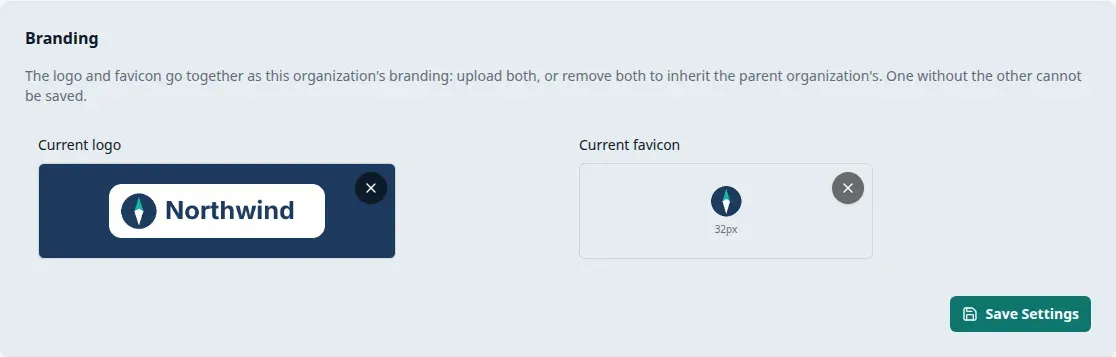
The logo and favicon go together: upload both, or remove both to use the organization above yours again. One without the other can’t be saved.
Colours
Under Theme, choose one:
- Inherit from the organization above yours.
- System Light / Dark modes: people keep their own light or dark choice.
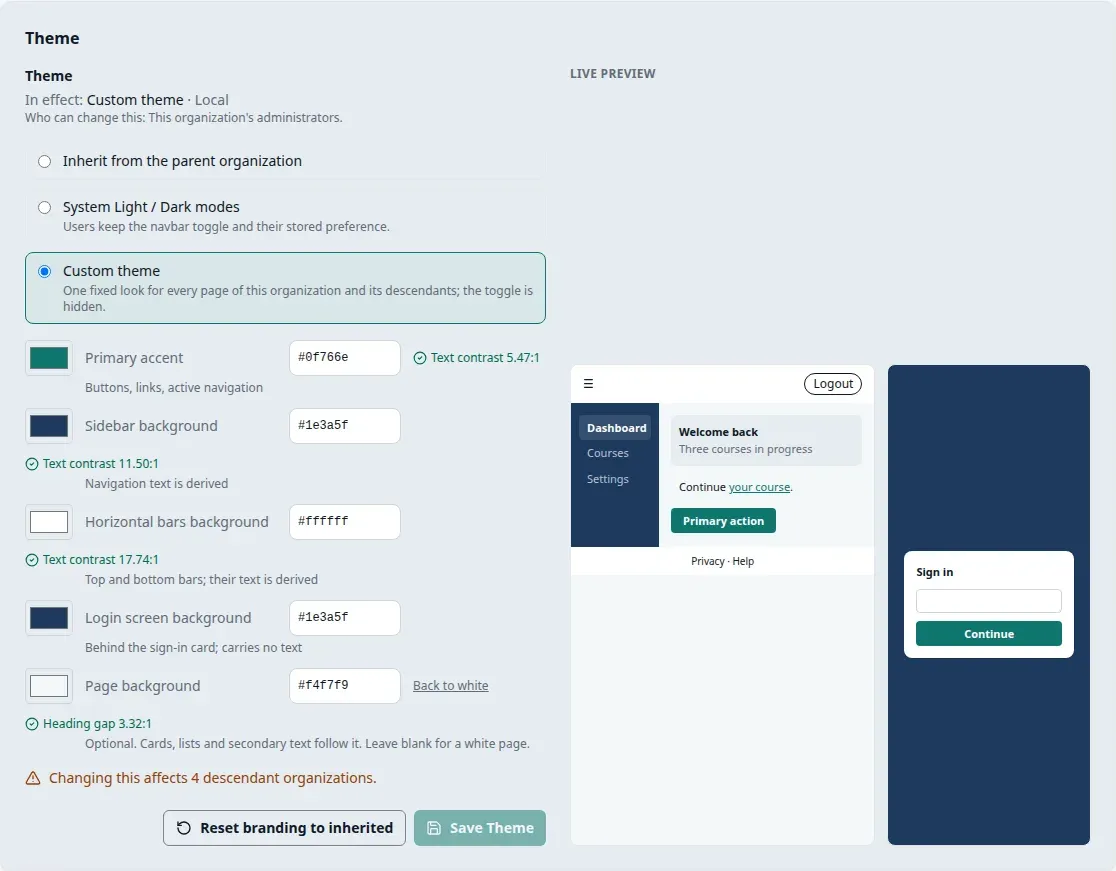
- Custom theme: one fixed look for every page of your organization and those beneath it; people’s light and dark switch is hidden. Choose the Primary accent, Sidebar background, Horizontal bars background (the bars across the top and the bottom of every page) and Login screen background, and optionally a Page background. Live preview shows the result.
Then choose Save Theme.
Good to know
- A custom theme needs your organization’s own Bronze licence or higher. Without one, choosing it says what upgrading would take.
- Readability is checked. A colour too close to its text is flagged with a suggested colour to use instead.
- Reset branding to inherited puts the theme, logo and favicon back to the organization above yours, all together.
If this didn’t help
Ask Nix to log a support ticket, or open Support under Need help?.
Copyright © 2026 Acadenix.com