
Change your own name, picture and preferences
Your profile holds your own name, picture and preferences. It is the same page for everyone, whatever their role.
Steps
-
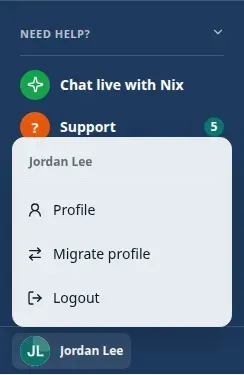
At the bottom of the sidebar, choose your name, then Profile. My Profile opens.
-
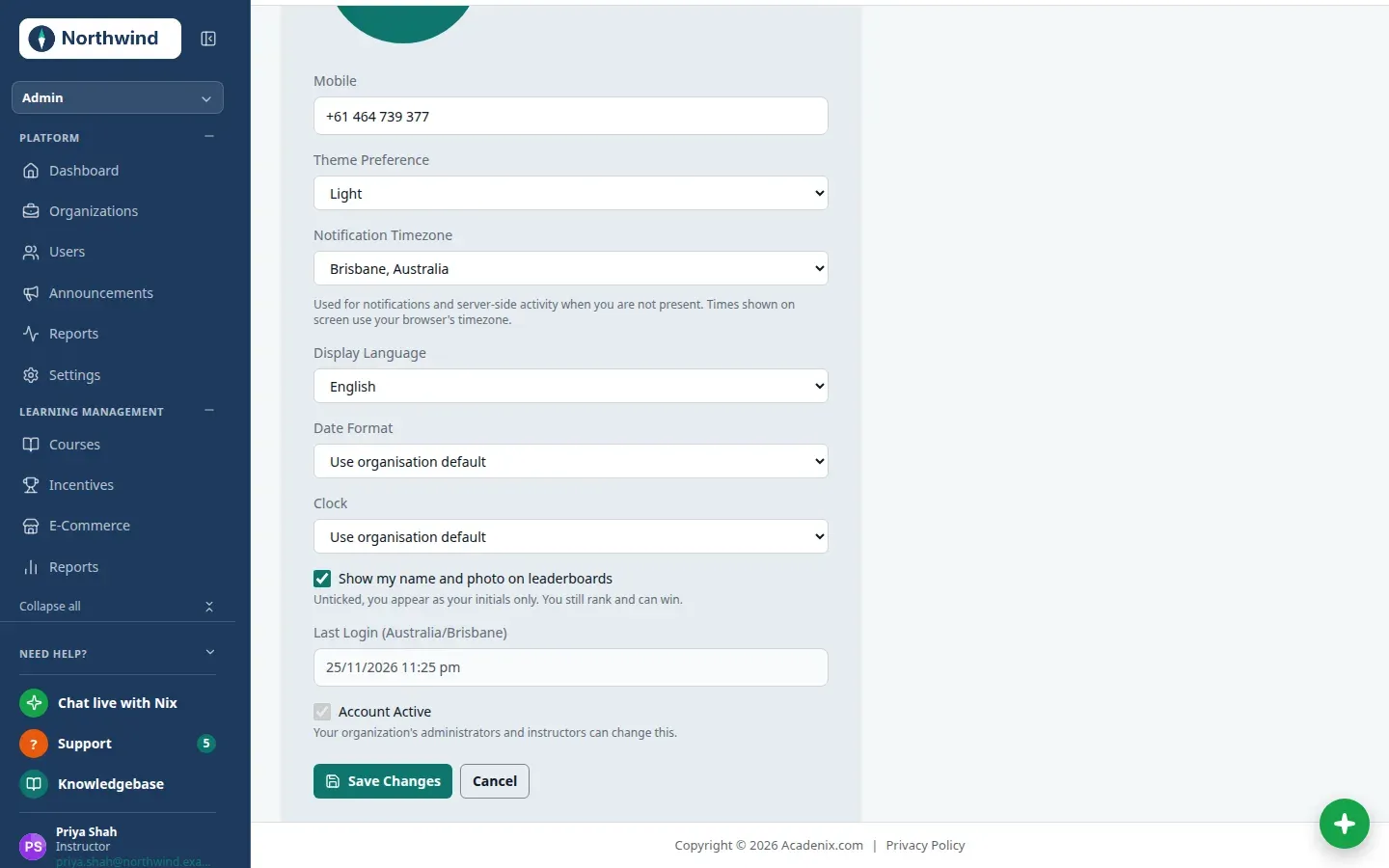
Change what you need:
- First Name and Last Name.
- Avatar: choose Choose a PNG, or drag a picture onto the circle (PNG, up to 2 MB). Drag the picture or use the arrow keys to position it, and Zoom to size it. Remove shows your initials instead.
- Mobile.
- Theme Preference: System, Light or Dark.
- Notification Timezone, or Use organisation notification timezone to follow your organization’s Default notification timezone.
- Display Language, or Use organisation default.
- Date Format (dd/mm/yyyy, mm/dd/yyyy or yyyy-mm-dd) and Clock (12-hour or 24-hour), or Use organisation default. Every date and time on screen, reports included, follows them.
- Show my name and photo on leaderboards: untick it to appear as your initials only.
-
Choose Save Changes.
Good to know
- Your Email, User ID and Managing Organization are shown for reference and can’t be changed here.
- Account Active shows whether your account is on. You can’t change it here; your organization’s administrators can, on Users.
- The sun or moon beside your name at the bottom of the sidebar switches between light and dark. With a Custom theme it isn’t there, and theme choices have no effect.
- Dates on screen use your browser’s timezone. The notification timezone is for emails and for what happens while you are away.
- Your screens and emails follow your Display Language straight away. Without one, they follow your organization’s default language. Only languages translated in full are listed; more join as they are translated.
- My audiences lists your audiences. Join an audience takes an audience’s PIN, and Leave shows beside one you joined yourself.
If this didn’t help
Ask Nix to log a support ticket, or open Support under Need help?.
Copyright © 2026 Acadenix.com