
Create your account
You join your organization through its invitation link, or by registering on its sign-in page if it allows that. If an administrator added you, you already have an account: just sign in with that email address.
With an invitation link
-
Open the link your organization sent you.
-
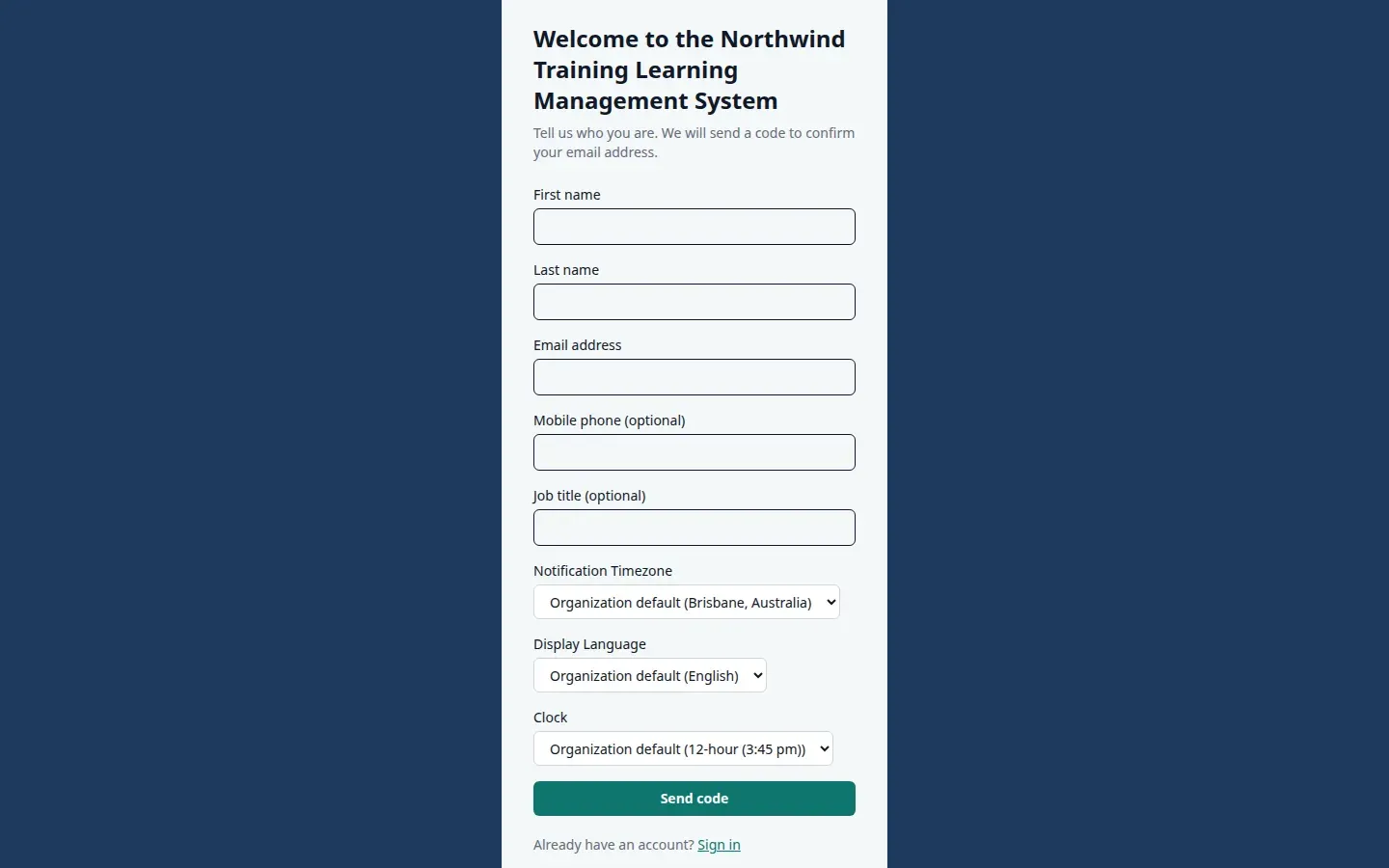
Fill in First name, Last name and Email address. Mobile phone (optional) and Job title (optional) can stay empty.
-
Notification Timezone, Display Language and Clock start on your organization’s own. Change any you like; left as they are, you follow your organization’s settings. You can change them later on your profile.
-
Choose Send code.
-
Type the six-digit code from your email in Code and choose Verify code.
You’re then signed in, or you see Thanks, your registration is in: an administrator must approve it first, and you’ll get an email when they have.
By registering
If the sign-in page shows Register, choose it, fill in the form and choose Send code, then enter the code as above. Your email address must be one your organization accepts.
If you choose Google, LinkedIn or Microsoft on the sign-in page without an account, your organization may take you to this form with your email filled in; there is nothing to confirm then.
Good to know
- Registration is by invite only means you can’t sign up here: ask your organization for its invitation link.
- Registration link has expired means the link no longer works: ask your administrator for a current one.
- If it says an account already exists for this email address, you’re already registered: sign in instead. One email address has one account.
- If signing in says your registration is awaiting approval, an administrator hasn’t approved it yet.
- The code works once, for five minutes.
If this didn’t help
Ask Nix to log a support ticket, or open Support under Need help?.
Copyright © 2026 Acadenix.com