
Recover administrator access
If your organization’s usual sign-in stops working, for example when your identity provider is down, an administrator can still get in with a one-time code sent by email. This can’t be switched off.
Steps
-
Open your organization’s sign-in page. Under Enterprise sign-in unavailable?, choose Use administrator recovery.
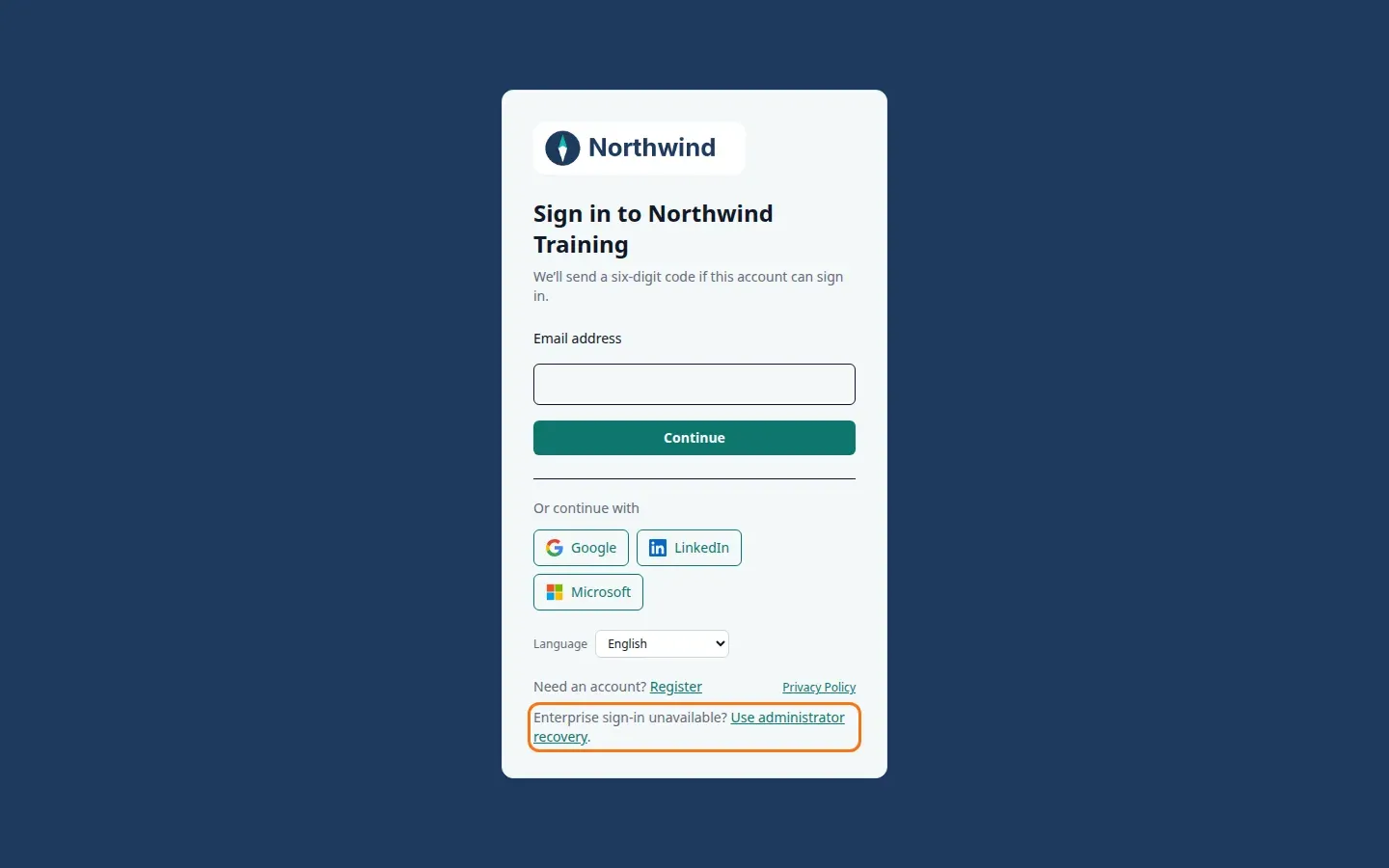
-
Enter your Administrator email address and choose Send recovery code.
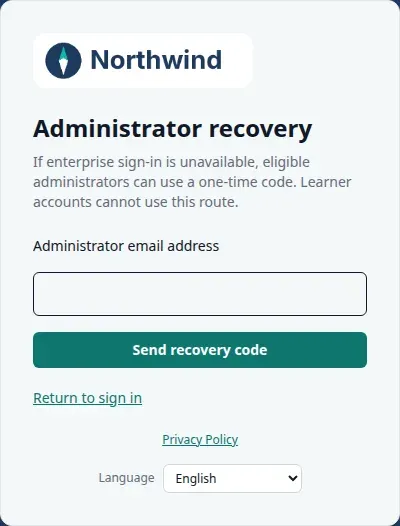
-
Enter the six-digit Code from the email and choose Verify code. You are signed in to your organization.
Good to know
- Only administrators who manage that organization can use it. Learners and instructors can’t; they wait for the usual sign-in to work again.
- No email arriving means the address was mistyped or isn’t an administrator’s there. The page doesn’t say which, on purpose.
- Too many requests for one address make you wait a while before the next code.
- Settings, Authentication reminds you of this under Administrator recovery stays available.
- If your custom domain stops working, your organization is still at its address on the platform (see Your organization’s address and custom domains). Acadenix can repair a custom domain for you: ask Nix to send your question to support.
If this didn’t help
Ask Nix to log a support ticket, or open Support under Need help?.
Copyright © 2026 Acadenix.com