
Build a test and use it as a course's exam
A test is a course’s final step: learners take it after finishing every unit.
Steps
-
In the sidebar, choose Courses, then the Tests tab.
-
Choose New test.
-
On Properties, enter the Name and the Master score (%), the pass mark. Tick Evaluated (the course completes only on a pass) if learners must pass. Set the Retake amount, the attempts allowed in total (empty means one), and a Time limit (minutes) (empty means none).
-
On Behavior, choose how questions are shown, shuffled and checked.
-
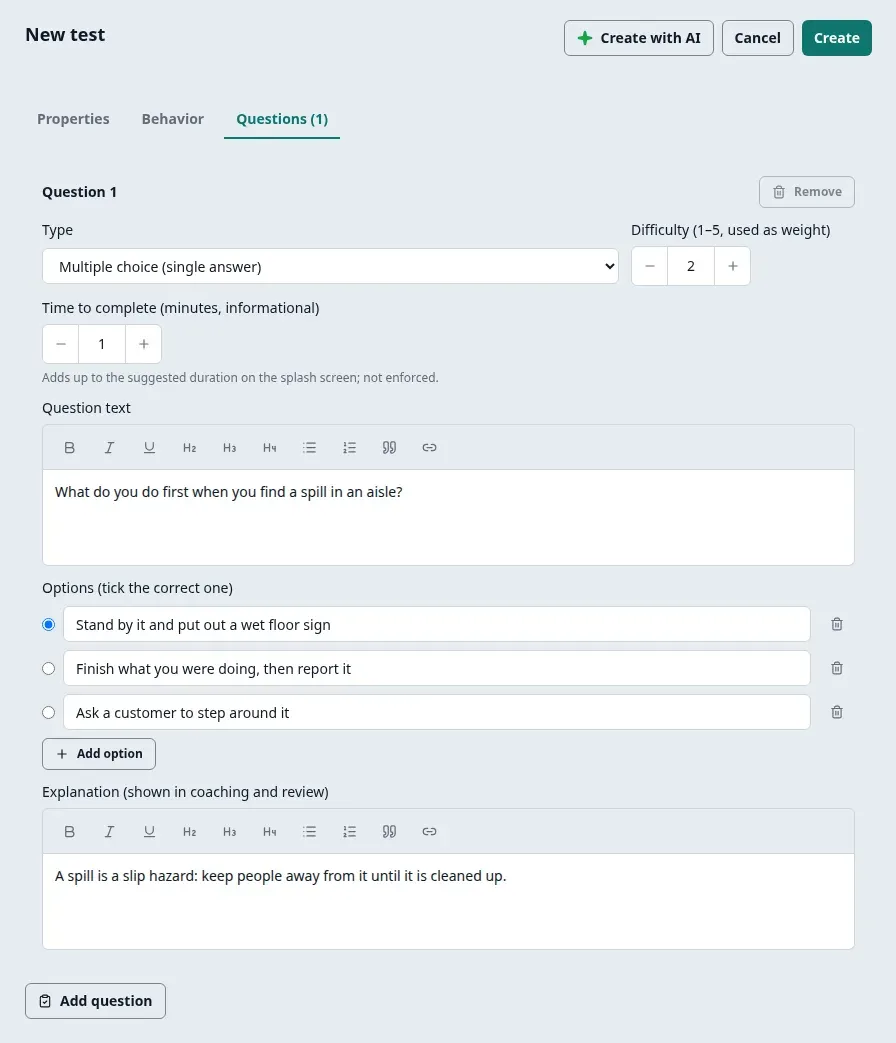
On Questions, choose Add question for each: its Type, Difficulty (1–5, used as weight), Question text, the correct answer, and an optional Explanation (shown in coaching and review).
-
Choose Create.
Create questions with AI
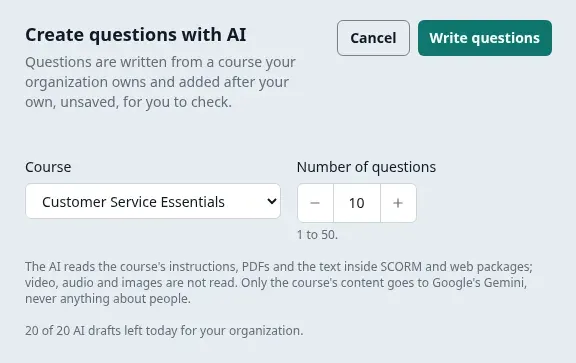
On Questions, choose Create with AI, the button with Nix’s green sparkle. Choose a Course your organization owns and the Number of questions (1 to 50), then Write questions. Archived and hidden courses aren’t offered, and a draft shows Draft beside its name.
- What the AI reads: the course’s instructions, its PDFs, the text inside its SCORM and web packages, and the captions of its videos. A video without captions isn’t read, and the result names it so you can add captions and try again. Audio and images aren’t read.
- How the questions are spread: evenly across the course’s units, and only about what the course teaches, never about the course itself (its buttons, player or on-screen labels).
- What it writes: a mix of all five question types, each with a difficulty, a time to complete and an explanation.
- Where the questions go: after your own questions, and into any empty question. Nothing is saved until you choose Create or Update, so check each question first.
- The time limit: if Time limit (minutes) is empty, it’s set to the questions’ total time. If you’ve already set it, the note above the questions shows the total instead.
Your organization can create questions with AI 20 times a day, and each time is listed in the Activity log. Only the course’s content is sent to Google’s Gemini, never anything about the people using Acadenix.
To use it, open the course and, on Test & Certificate, tick Include a test with this course, choose the Test and choose Update. A course has one test.
Results
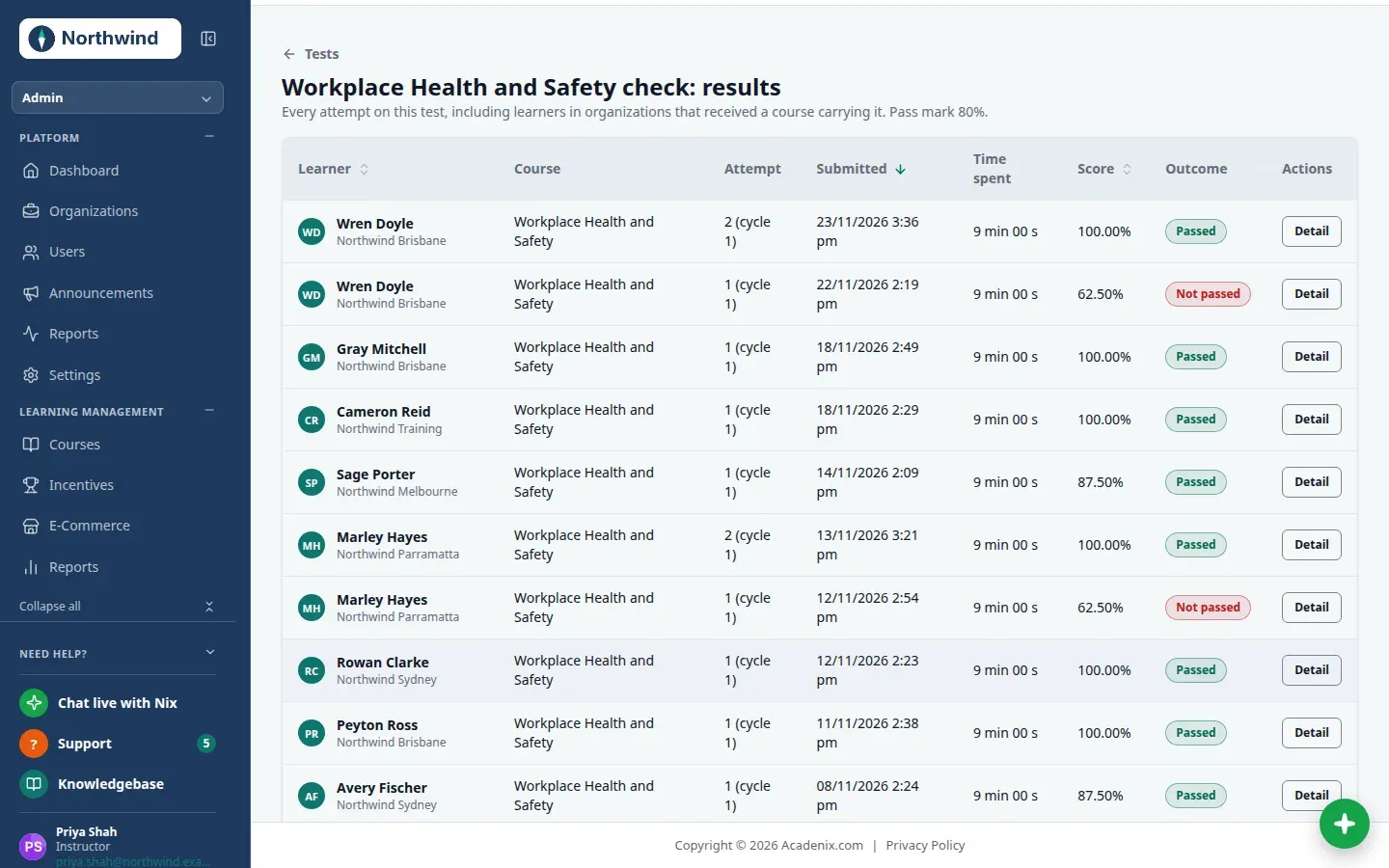
Choose Results from the test’s … menu, or Test results from the course’s Actions. Each attempt shows its Score, Time spent and Outcome; Detail shows the answers given. A test that belongs to one of your sub-organizations opens for you as it does for its owner, covering that organization and the ones beneath it; a test received from above shows your own learners and those beneath you.
Good to know
- Question types: Multiple choice (single answer), Multiple choice (many answers), True / False, Ordering and Fill in the word.
- A test that isn’t evaluated completes the course on the first attempt submitted, whatever the score.
- When the time limit runs out, the attempt is submitted with the answers saved so far. Unanswered questions score zero.
- A learner who hasn’t passed sees a coaching review while attempts remain, never the correct answers. If the test is passed, show sets what a passing learner sees.
- Reset result appears for a learner still enrolled who used every attempt without passing. It gives them a fresh set of attempts; earlier ones stay in the results. A pass can’t be reset.
- Editing a test in use applies to new attempts only. Changing a course’s test while learners are enrolled ends their unsubmitted attempts and gives them a fresh allowance.
- Archive is refused while a course uses the test. Filter by Archived to find archived tests and Restore them.
- Tests marked From another organization come with a course you receive. View them and add them to your own courses; only the owner can change them. Their results show the attempts in your organization and those beneath it, without the correct answers.
- Building and editing tests needs a plan of your organization’s own: Bronze, Silver or Gold. New test then says what upgrading would take.
If this didn’t help
Ask Nix to log a support ticket, or open Support under Need help?.
Copyright © 2026 Acadenix.com