
Create and publish a course
A course is a set of units, and optionally a test and a certificate. It starts as a draft that learners can’t see until you publish it.
Steps
-
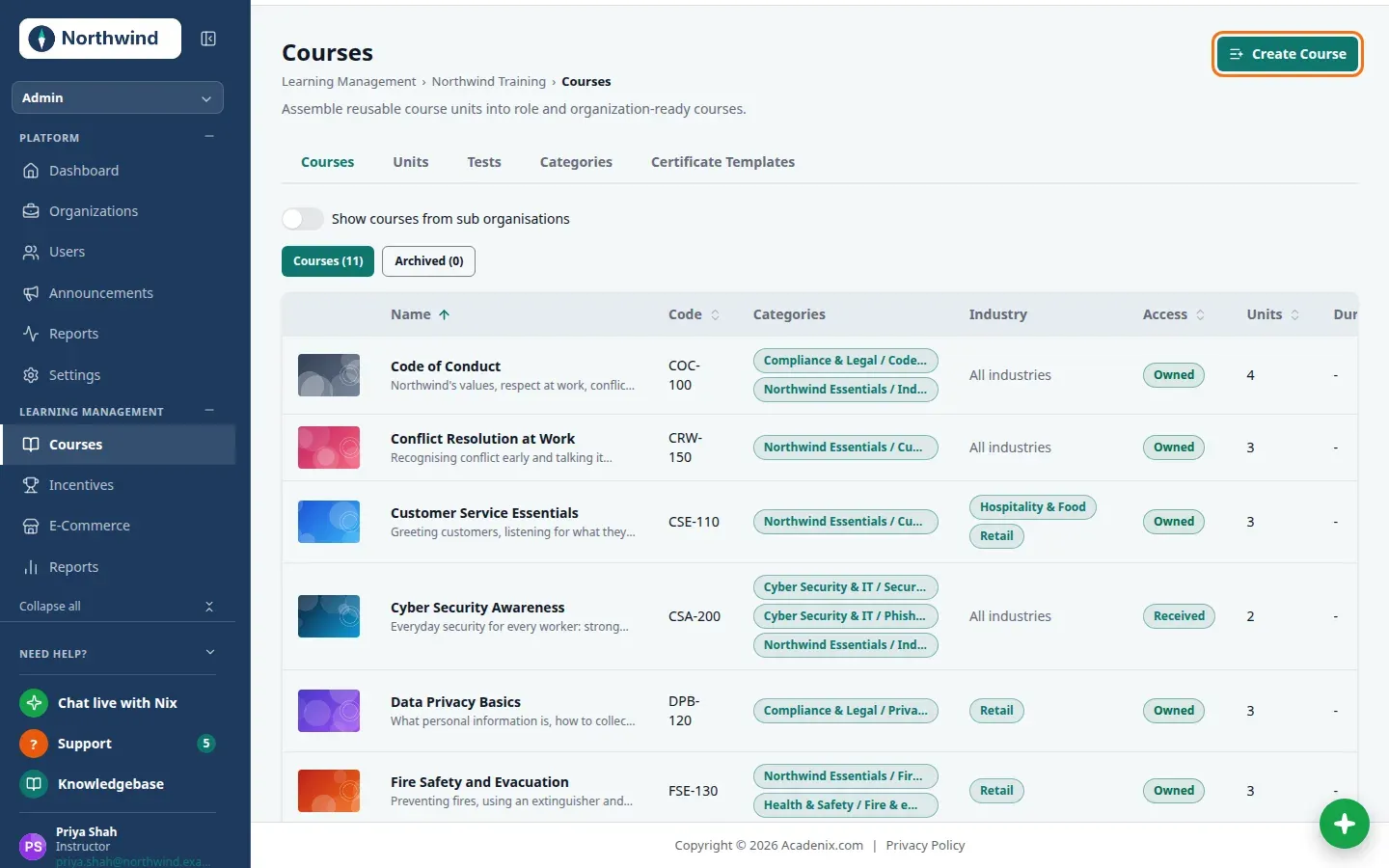
In the sidebar, choose Courses, then Create Course. The New course editor opens on the right.
-
On Properties, enter the Course Name, the only required field. Course Code, CPD Points, Approximate duration (calculated from the units and the test, or set by hand), Complete this course first, Description, Categories, Industries, Language and a Course image are optional.
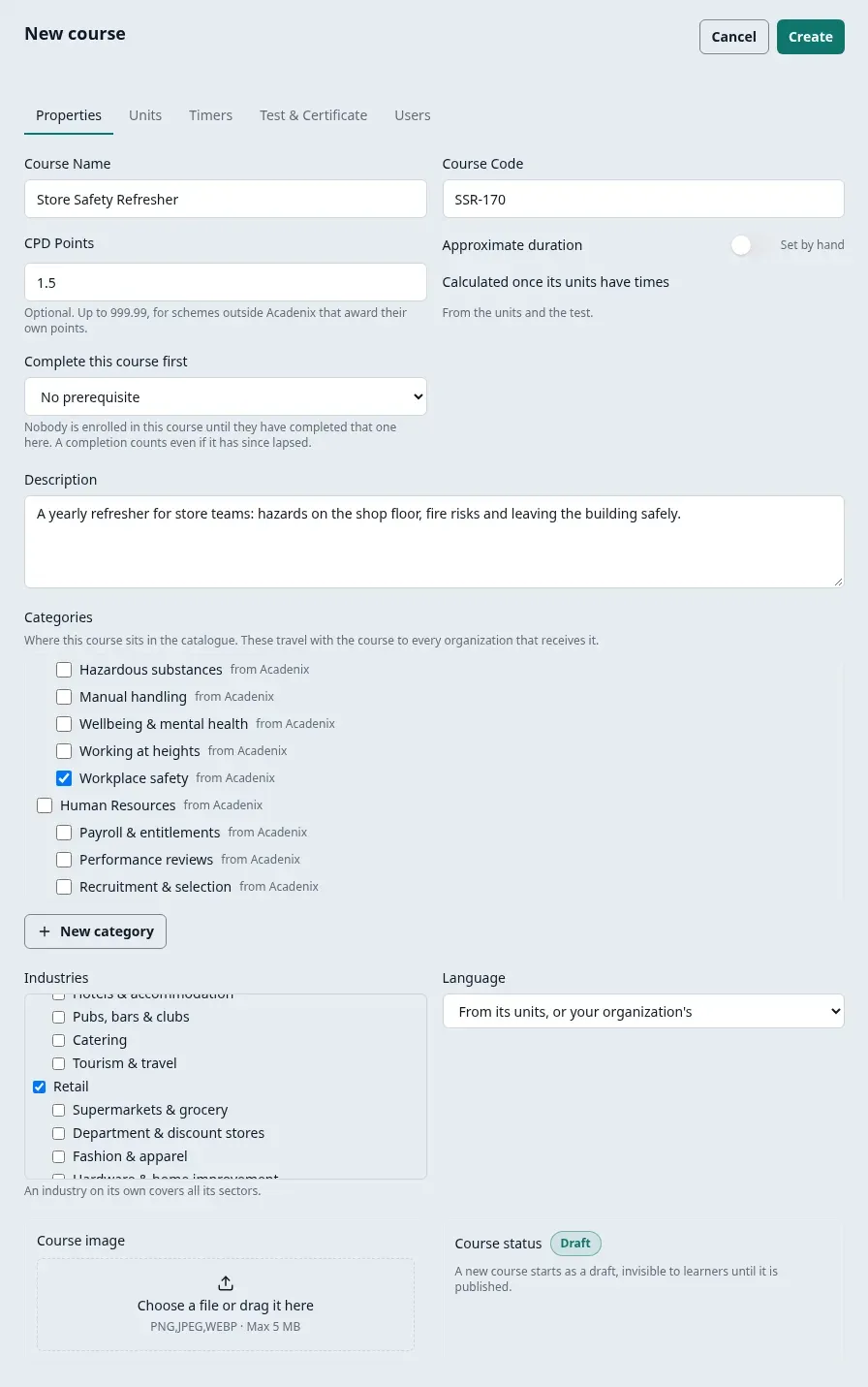
Industries says who the course is for: tick industries, or sectors within them. An industry on its own covers all its sectors, and none ticked means all industries. If the course maker made a unit for an industry, the editor offers it while none is ticked. Language is the language the course is in, your organization’s default language unless you change it. Learners’ Courses page filters by both, and so do the course list and the reports. Only the organization that owns a course changes them.
CPD Points is for schemes outside Acadenix that award their own points for a course, such as continuing professional development or an industry competition: up to 999.99, with up to two decimal places, such as 1.5 (a decimal comma, 1,5, works too). Learners see it on the course page and in the catalogue. Leave it blank when the course carries none; 0 means it is worth nothing. It doesn’t count towards Acadenix’s own scores or leaderboards.
-
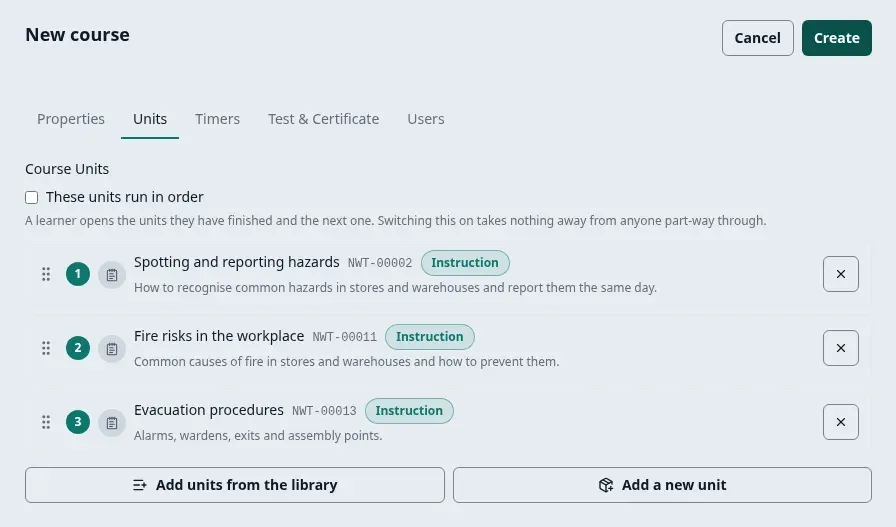
On Units, choose Add units from the library, or Add a new unit to create one. Drag units by their handle to put them in order.
-
On Timers, set any deadlines. All are optional.
-
On Test & Certificate, tick Include a test with this course and choose the Test, and choose a Certificate template if completing the course should earn a certificate.
-
Choose Create.
-
To publish, choose Publish from the course’s … menu in the list, or open the course and choose Publish under Course status on Properties. Confirm with Publish course.
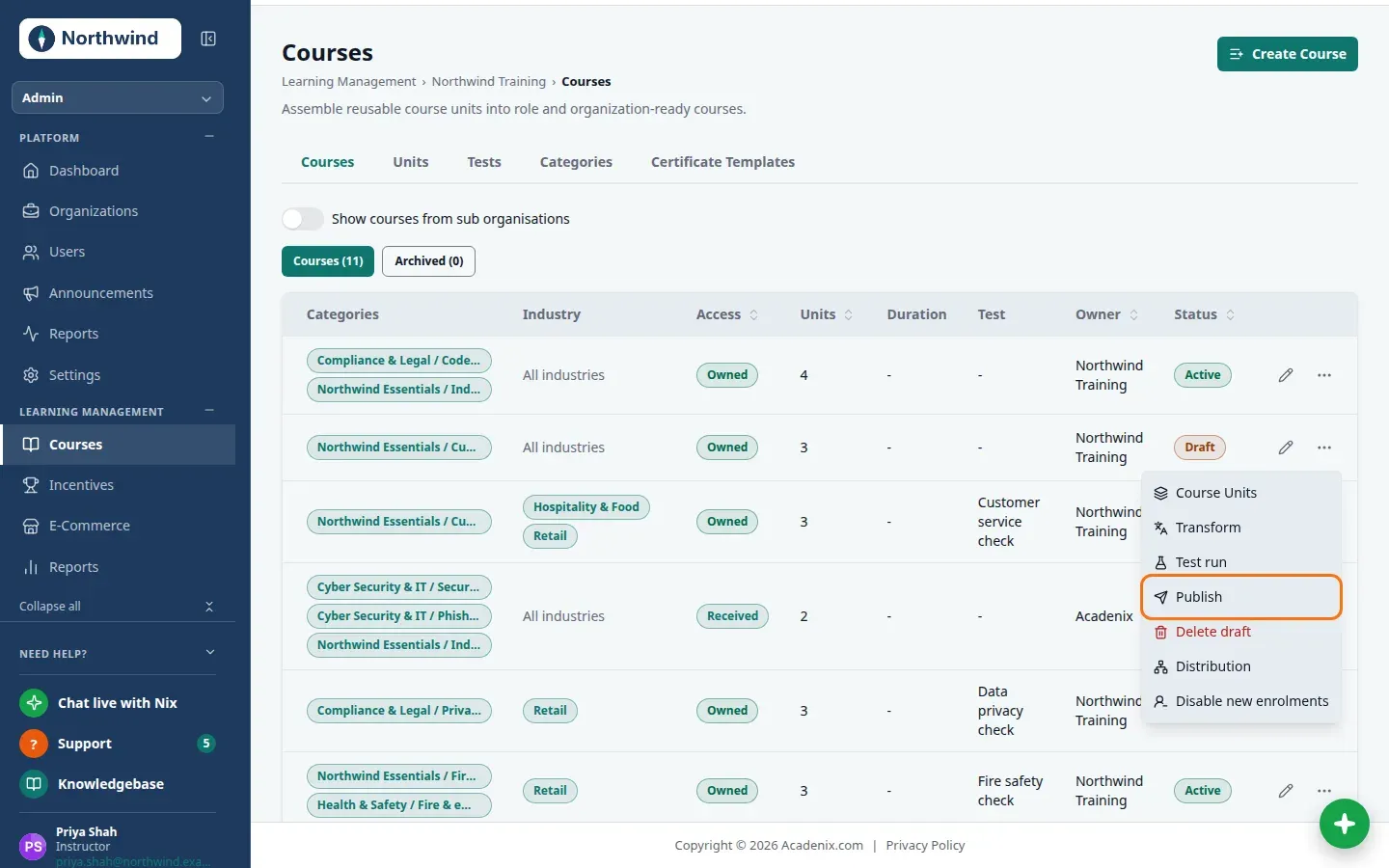
Once published, learners can find and enrol in the course in every organization it goes to.
Good to know
- To try a course as a learner, choose Test run from its … menu. It opens every unit and the test without enrolling you, a draft included, so you can check a course before you publish it. Nothing is saved: no progress, attempts, completions or certificates. A banner at the top says so; choose End test run when you’re done. Courses you take in an organization other than your own home organization are test runs too.
- To edit a course, select it in the list or choose its pencil. The editor opens on Properties, with the course’s Actions menu below Update. Choose Update to save.
- A new course goes to every organization beneath yours. To change that, see Choose which organizations receive a course.
- Global administrators also see Owner Organization on Properties. It starts as the organization you’re working in; choose one beneath it to create the course there instead.
- A course you receive from above opens read-only, on Details, Units, Users and Pricing. Only the organization that owns a course can edit it.
- Show courses from sub organisations also lists the courses owned by organizations beneath yours. To work on one, choose Manage in organization from its … menu.
- Can’t create a course? Creating and editing courses and tests needs a plan of your organization’s own: Bronze, Silver or Gold. An organization that uses the plan of the organization above it uses the courses it receives but can’t add its own; Create Course then says what upgrading would take.
- More on each part: Add and manage units in the Units Library, Set course timers and re-enrolment, Require a course first, or units in order, Build a test and use it as a course’s exam, Choose and customize certificate templates, and Unpublish, archive or hide a course.
- Audiences on Properties, once the course exists, decide which learners find it. A new course is in Everyone. See Decide who sees a course with audiences.
If this didn’t help
Ask Nix to log a support ticket, or open Support under Need help?.
Copyright © 2026 Acadenix.com