
Switch to another organization
To work in an organization beneath yours, with its people, courses, settings and reports, switch to it. Until you switch back, everything you see is that organization and the ones beneath it.
Steps
-
In the sidebar, choose Organizations. Your logo at the top of the sidebar takes you there too.
-
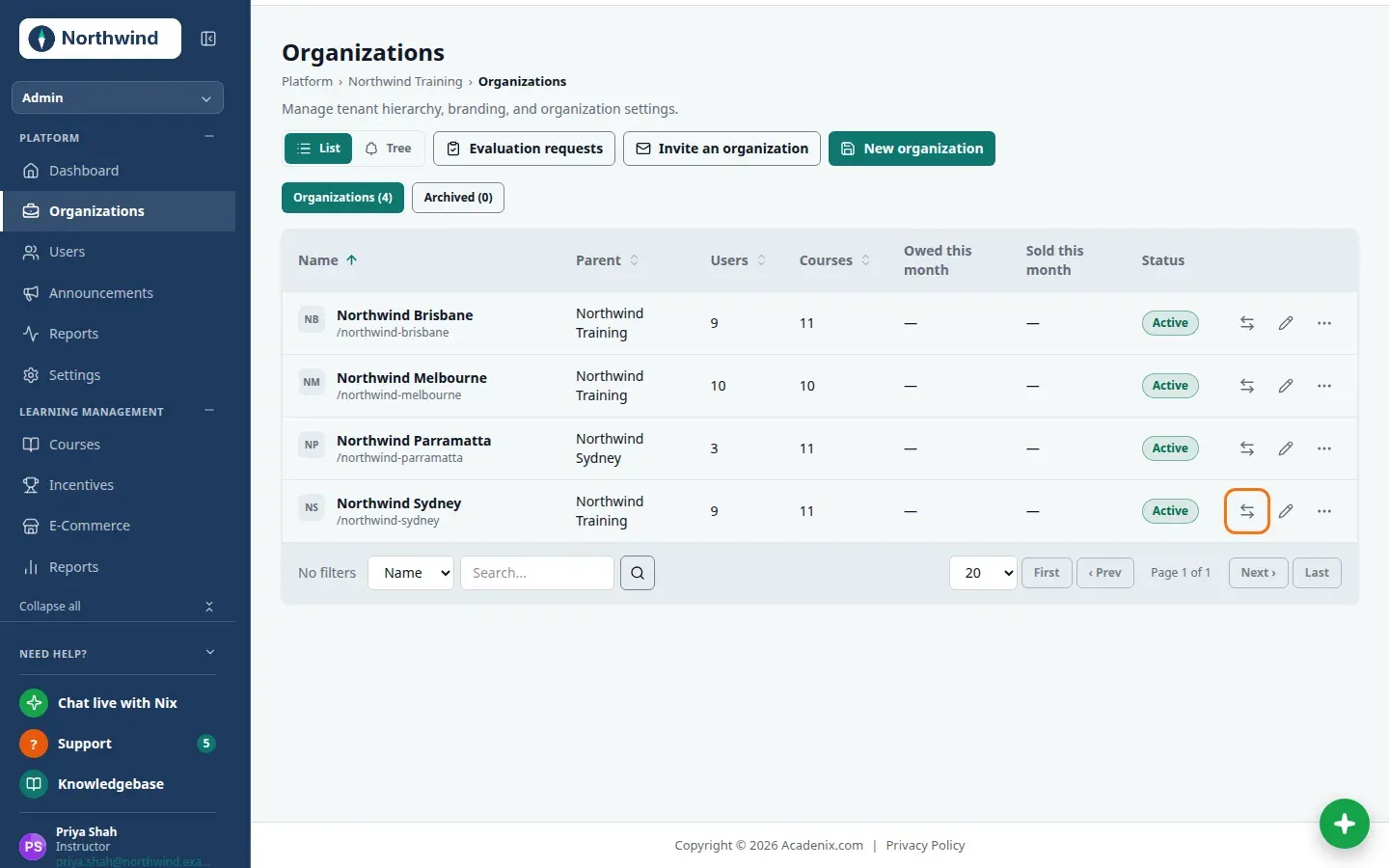
On the organization’s row, choose the switch icon (two arrows). It is also Switch to in the row’s … menu and in its slide-out’s Actions. To go straight to its settings, choose Settings instead.
-
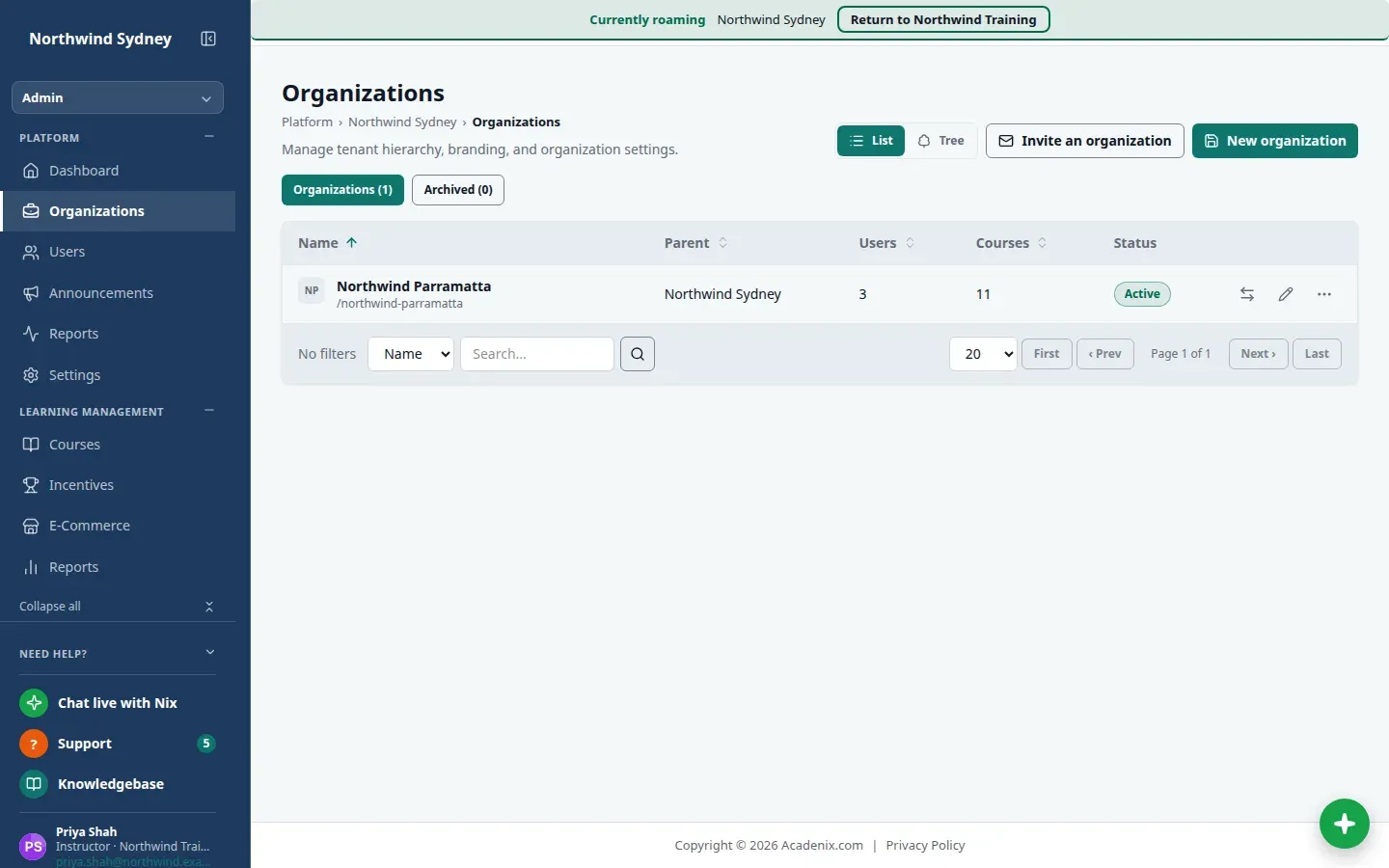
You stay on Organizations, now for that organization. A Currently roaming bar at the top names it.
-
To go back, choose Return to and your organization’s name in that bar.
Good to know
- You can switch only to organizations beneath yours. Nothing above or beside yours is listed.
- You may be asked to sign in again when that organization’s sign-in methods don’t accept the way you signed in.
- An archived organization can’t be switched to. Restore it first (see Manage the organizations beneath yours).
- Switch before you act. Enrolling people, for example, lists only the people of the organization you are working in.
- While impersonating someone, you can’t switch; stop first.
If this didn’t help
Ask Nix to log a support ticket, or open Support under Need help?.
Copyright © 2026 Acadenix.com