
Take a course's test
Some courses end with a test. It’s the Final step under Course Units, and it stays Locked until you’ve completed every unit.
Steps
-
On the course page, choose Take test.
-
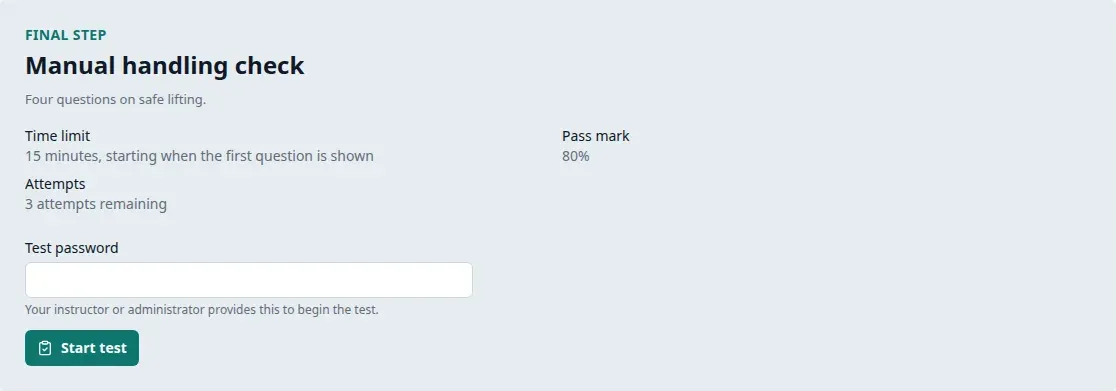
Check the details shown: Time limit, Pass mark, Attempts and sometimes Suggested duration. If there’s a Test password, enter the one your instructor or administrator gave you.
-
Choose Start test. A time limit starts when the first question appears, and the time left shows at the top.
-
Answer the questions. Your answers are saved as you go. Some tests show one question at a time with Previous and Next; some only move forward.
-
Choose Submit test. Unanswered questions score zero, and you’re asked to confirm first.
Your result
-
Test passed, or Test complete for a test with no pass mark: the course is complete.
-
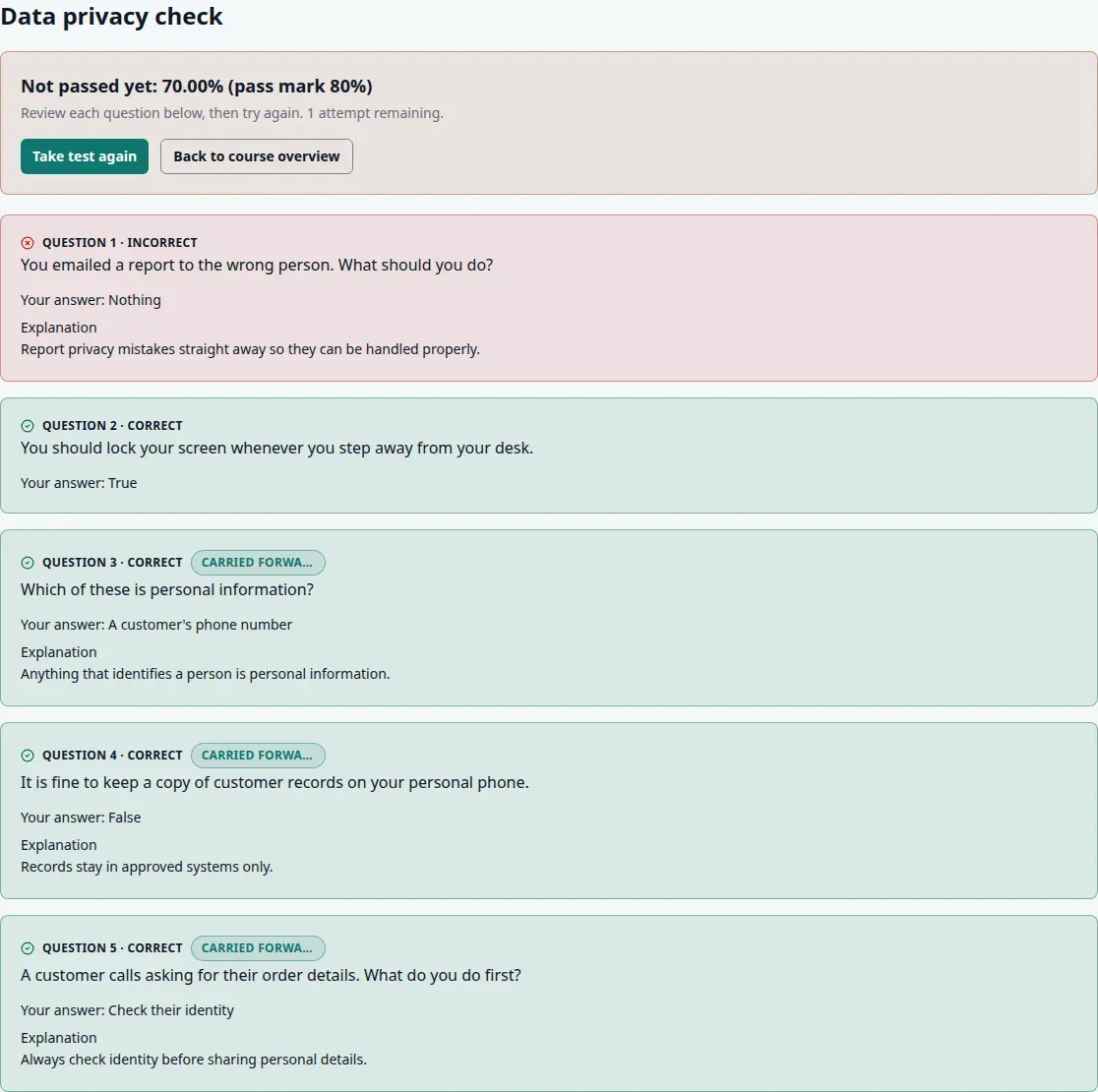
Not passed yet: you see which answers were correct. Choose Take test again while you have attempts left. Some tests ask again only the questions you got wrong; the others are kept and marked Carried forward.
-
Test not passed: you’ve used every attempt. Ask your administrator if the result should be reset.
Good to know
- If you leave during a test, come back and choose Resume test. A time limit keeps running while you’re away, and when time is up your saved answers are submitted for you.
- Some tests say that leaving the page submits the test. On those, closing the page or leaving the tab for more than about 30 seconds submits it.
- Check answer, where offered, shows whether that answer is right. You can’t change it afterwards.
- Review last attempt shows your previous attempt.
- In a Test run, the test works as usual but the attempt isn’t saved. The result says Test run, not saved.
- Nix can’t help with the questions or answers.
If this didn’t help
Ask Nix to log a support ticket, or open Support under Need help?.
Copyright © 2026 Acadenix.com