
Group courses into categories
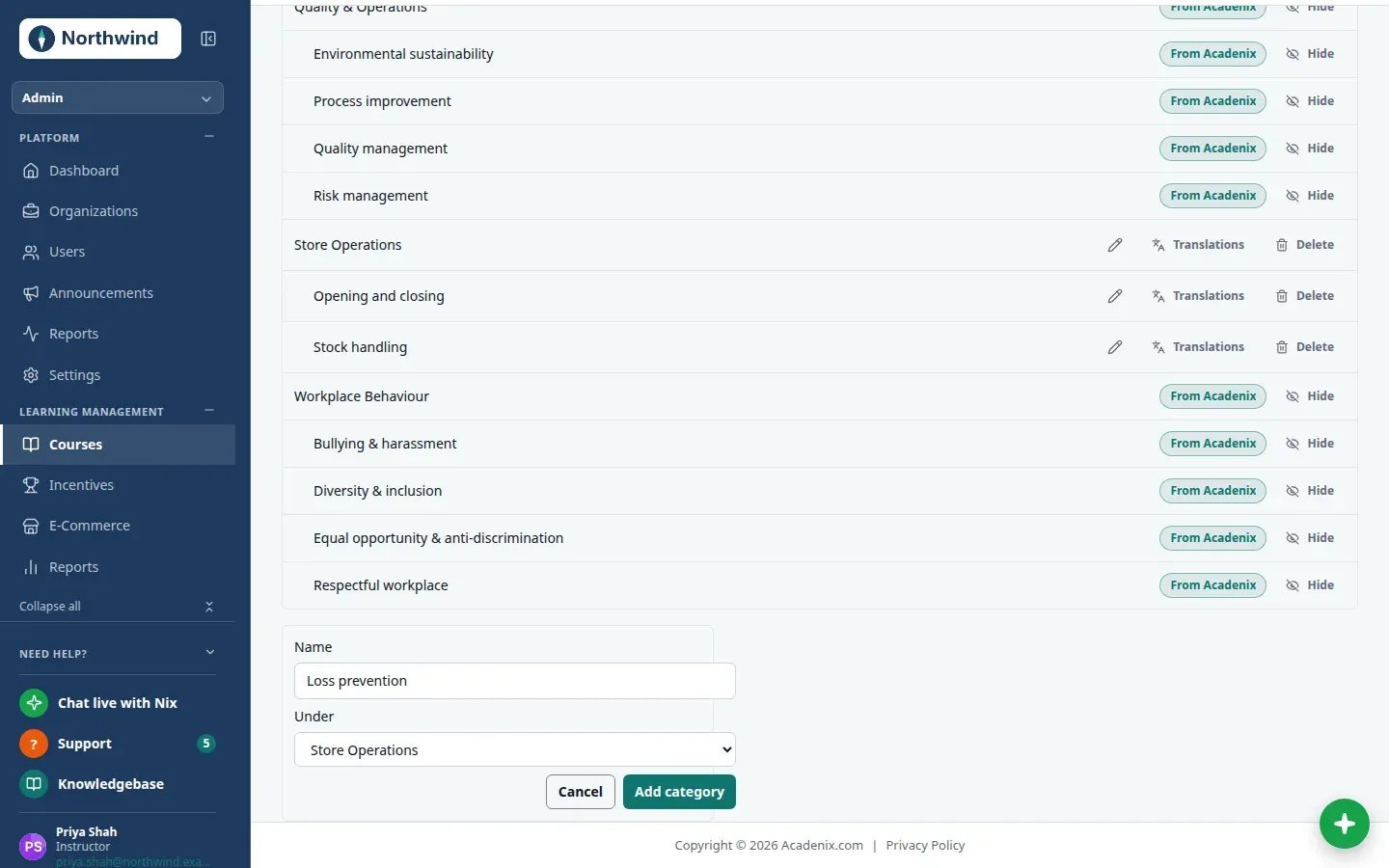
Categories group courses in the learner catalogue. Your organization has its own categories and those of the organizations above it, and the ones you add reach the organizations beneath yours.
Add a category
-
In the sidebar, choose Courses, then the Categories tab.
-
Choose New category, enter the Name, and choose where it goes Under, or Top level. Categories go three levels deep.
-
Choose Add category.
Translate a category
-
On the Categories tab, choose Translations next to a category you own.
-
Enter its name in any of the languages. Leave a language blank to show the name as entered.
-
Choose Save translations.
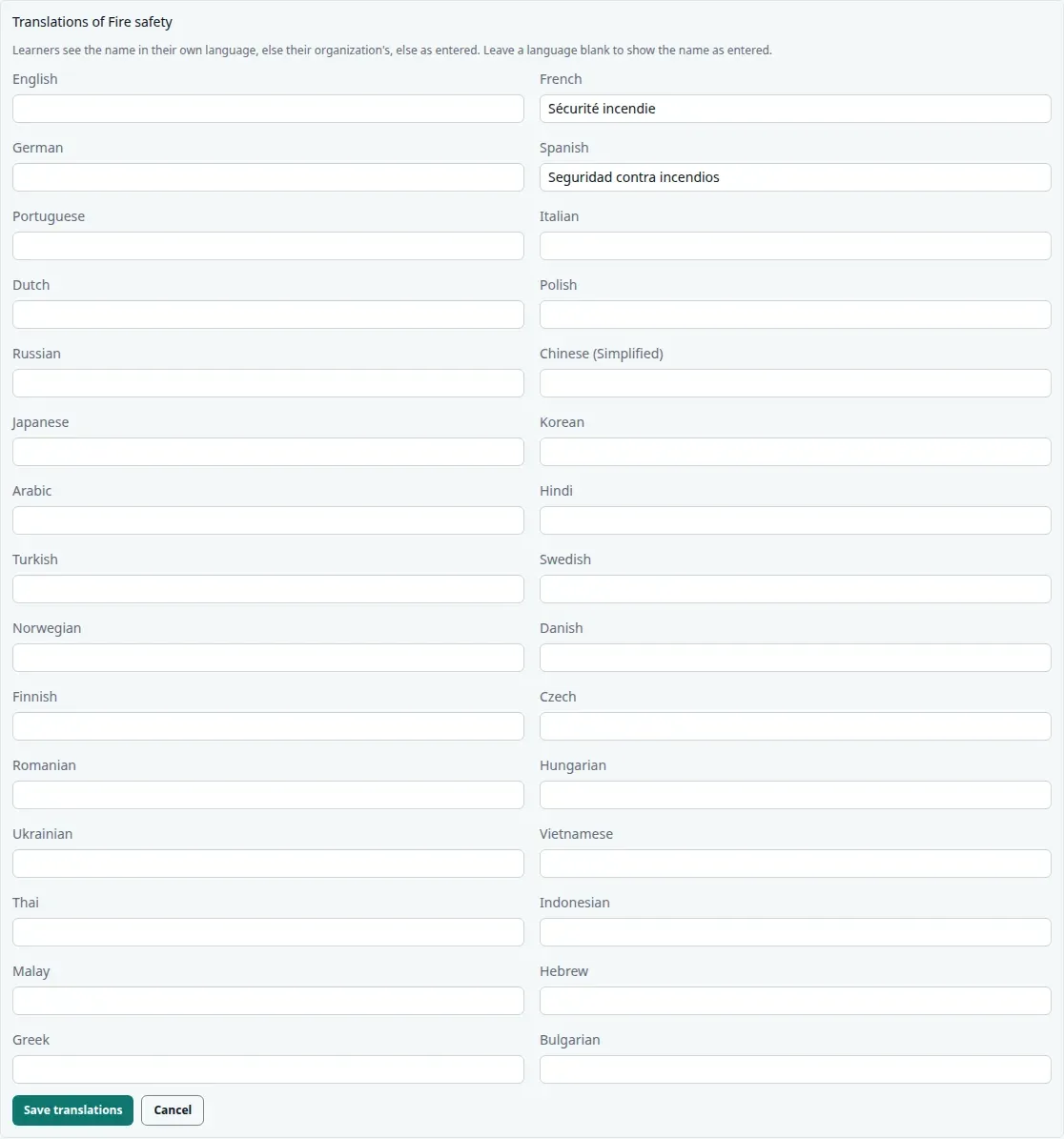
The organizations beneath yours see your translations too. Categories from above already have theirs; only the organization that made a category translates it.
Everyone in your organization sees categories in its default language, whatever their own: learners in their catalogue and course pages, and administrators on the Categories tab, in a course’s Categories and in the Category filter on Courses. Renaming (the pencil) and Translations start from the name as entered.
Put a course in categories
-
A course you own: open it and, on Properties, tick its Categories. New category adds one on the spot. Choose Update. These travel with the course to every organization that receives it.
-
A course you receive: choose Categories from its … menu. The owner’s categories show under From the course owner. Tick your own and choose Save categories. Yours apply to your organization and those beneath it; the owner never sees them.

What learners see
Their catalogue groups courses under category headings; a course in two categories appears under both, and courses with none are under Uncategorised at the end. Learners can show only chosen categories, or All categories, and search by category name in any language. They can also choose Group by None for one list, or Collapse all headings.
Headings are in your organization’s language, else as entered.
Good to know
- Renaming (the pencil) and Delete work on your own categories. Delete is refused while a category has categories under it or a course is in it.
- A category from above is marked From and the organization that made it. You can’t change it, but Hide removes it, and everything under it, for your organization and those beneath yours. Show, under Hidden here, brings it back.
If this didn’t help
Ask Nix to log a support ticket, or open Support under Need help?.
Copyright © 2026 Acadenix.com