
Start selling with E-Commerce
With E-Commerce on, your organization sells the LMS, and its courses, to the organizations beneath it, through its own Stripe account and at its own prices.
What you need
- Your organization’s own Silver or Gold licence. Bronze does not sell.
- A Stripe account of your own. Connecting it turns E-Commerce on by itself, unless the organization above yours has switched it off for you; then only they can turn it back on.
Steps
-
In Stripe, choose Developers → API keys → Create restricted key, and give it the permissions listed on your Stripe tab.
-
In the sidebar, choose Settings, then the Stripe tab. It appears while your organization has its own Silver or Gold, unless the organization above has switched E-Commerce off for you.
-
Enter the key in Restricted key and choose Connect. Acadenix sets up your products, prices, Payment Links, customer portal and webhook from it. Only a restricted key (starting
rk_live_orrk_test_) is accepted, never a full secret key. Never share a key in a chat.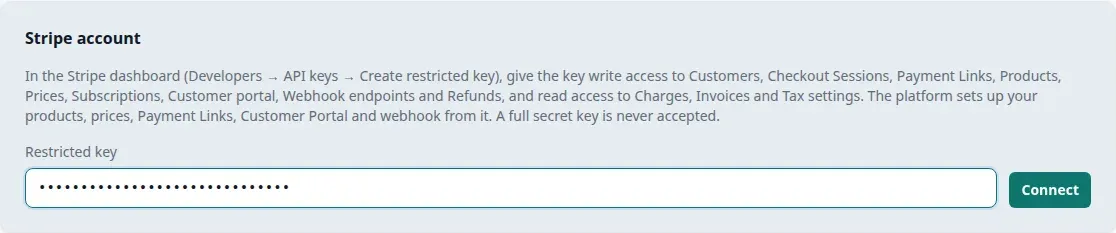
-
Under Prices, keep Follow the organization above, or choose Set this organization’s own price and enter its Price ($) and Minimum order. Neither can be below the Floor on its line. Offered decides whether you sell that plan at all. Choose Save prices.
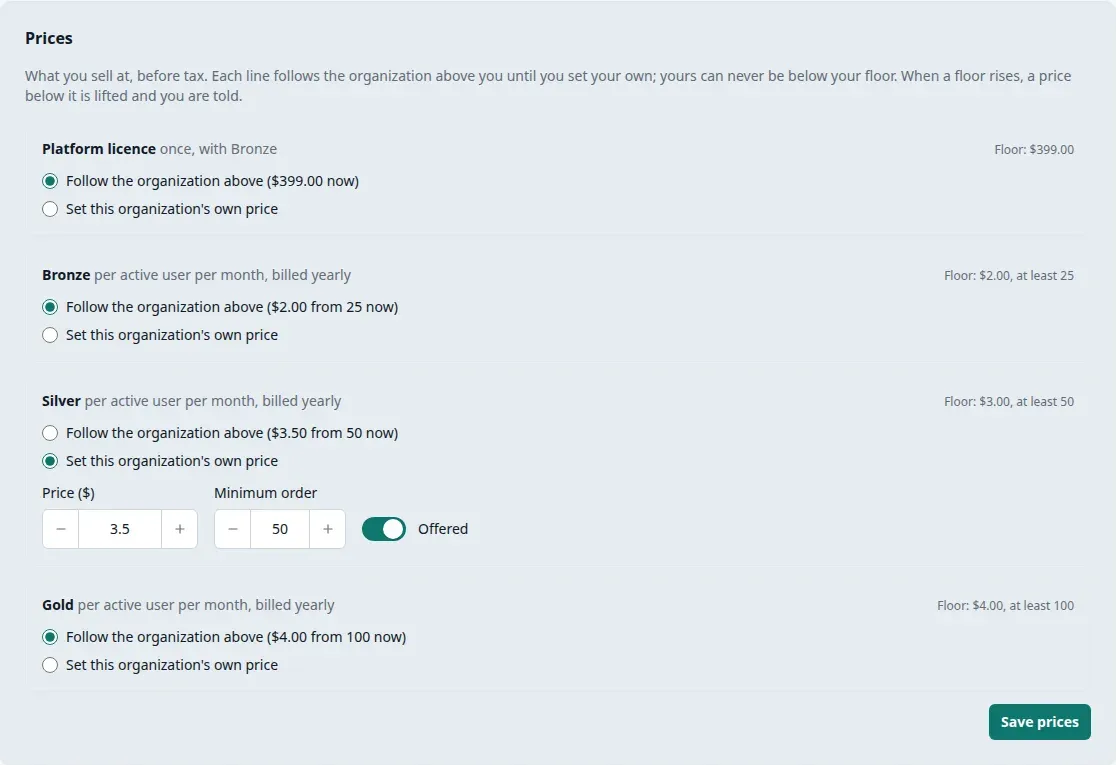
The top of the tab says when your organization is selling, or why it isn’t.
Your sales page
While you are selling, Your sales page has addresses to copy: Light and Dark, Embed, light and Embed, dark for your own site, Buy Bronze, Buy Silver and Buy Gold, which always lead to your current checkout, and JSON to build your own page.
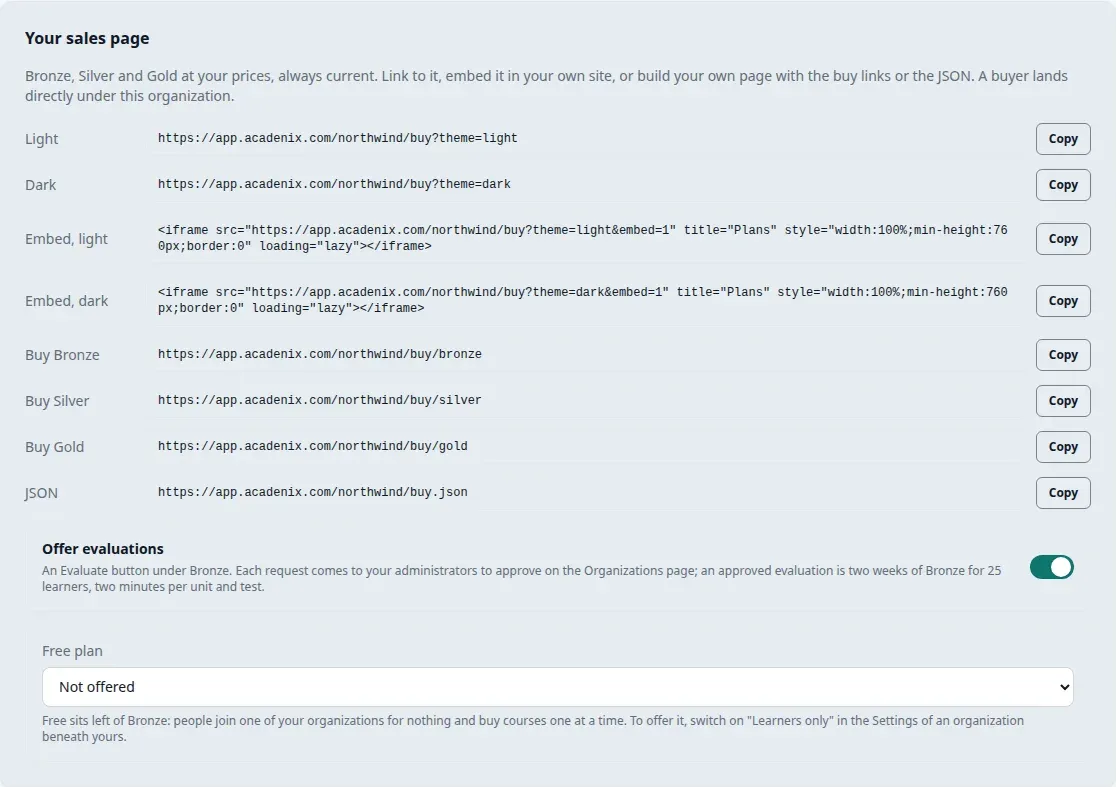
A buyer pays on Stripe, then fills in Product activation with their organization and its first administrator, and accepts the End User Licence Agreement. Their organization is created directly under yours.
Good to know
- Tax: turn on Stripe Tax in your Stripe dashboard first, then Calculate tax with Stripe Tax. Your prices are always before tax.
- Your own website: enter it in Website address under Landing page. Your sales page links to it, and upgrade prompts in organizations that buy from you lead there.
- Evaluations: Offer evaluations is on unless you switch it off. It adds Evaluate under Bronze. Requests wait under Evaluation requests on Organizations, and your administrators are emailed. Approve sends an invitation: 14 days of Bronze for 25 learners, 2 minutes per unit and test. Decline tells them.
- A Free plan: under Free plan, choose one of your organizations that has Learners only switched on. Your sales page then shows Free left of Bronze: people join that organization through its invite link with their work email address, top up their own credit by card, and buy your courses one at a time. Join free always opens the organization’s current invite link, so it keeps working when the link is regenerated. The plan isn’t shown while that organization’s invite link is switched off or expired. See Invite links and registration.
- When your floor rises, a price below it is lifted, and a notice on the tab says so. Dismiss it once read.
- Replace changes the key. Remove the key stops Acadenix reading your customers’ subscriptions; their licences stay as they are.
- Selling a course: see Price a course, or make it free below you.
- What you owe the seller above, and what sellers below owe you, is under Wholesale, by Month, with Download CSV. This month’s totals are the Owed this month and Sold this month columns on Organizations.
- If E-Commerce is turned off, new sales end at once; customers already sold to keep their subscriptions.
If this didn’t help
Ask Nix to log a support ticket, or open Support under Need help?.
Copyright © 2026 Acadenix.com