
Manage a person
Everyone on Users has a slide-out with their details, their courses and their certificates, and an Actions menu for everything else.
Steps
-
In the sidebar, choose Users. Switch on Show users from sub organisations to include the organizations beneath yours; people who have left are on the Archived tab.
-
Select the person’s row, or the pencil at its right. Their slide-out opens on Details.
-
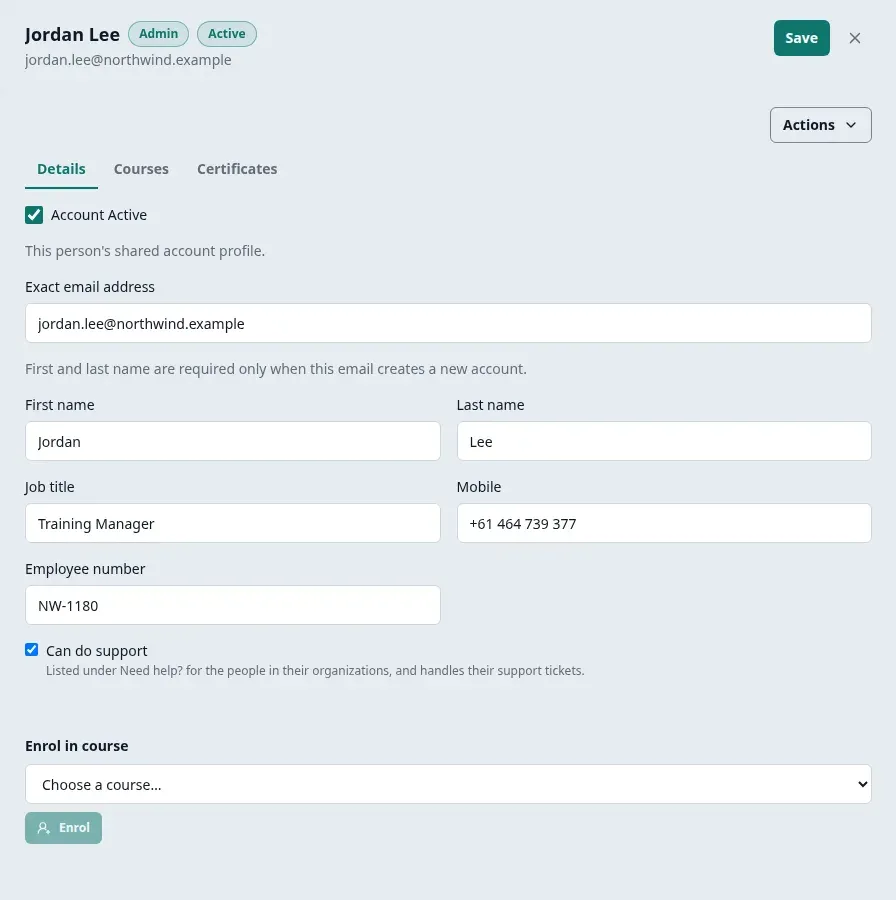
Change First name, Last name, Job title, Mobile or Employee number, and choose Save. The email address can’t be changed. An employee number must be unique within the person’s organization, and a person can’t be moved into an organization where someone already has theirs. Automated Events send it to your own systems, so they can match the person. Learners don’t see it or change it. For an administrator, Can do support is ticked to start with. A ticked administrator is listed under Need help? for the people in their organizations, and handles their support tickets (see Handle support tickets). Untick it for someone who shouldn’t be asked. A ticked global administrator is never listed under Need help?: they handle the tickets that reach Acadenix, and can open any organization’s. Account Active at the top switches their account off (a suspension) or back on straight away.
-
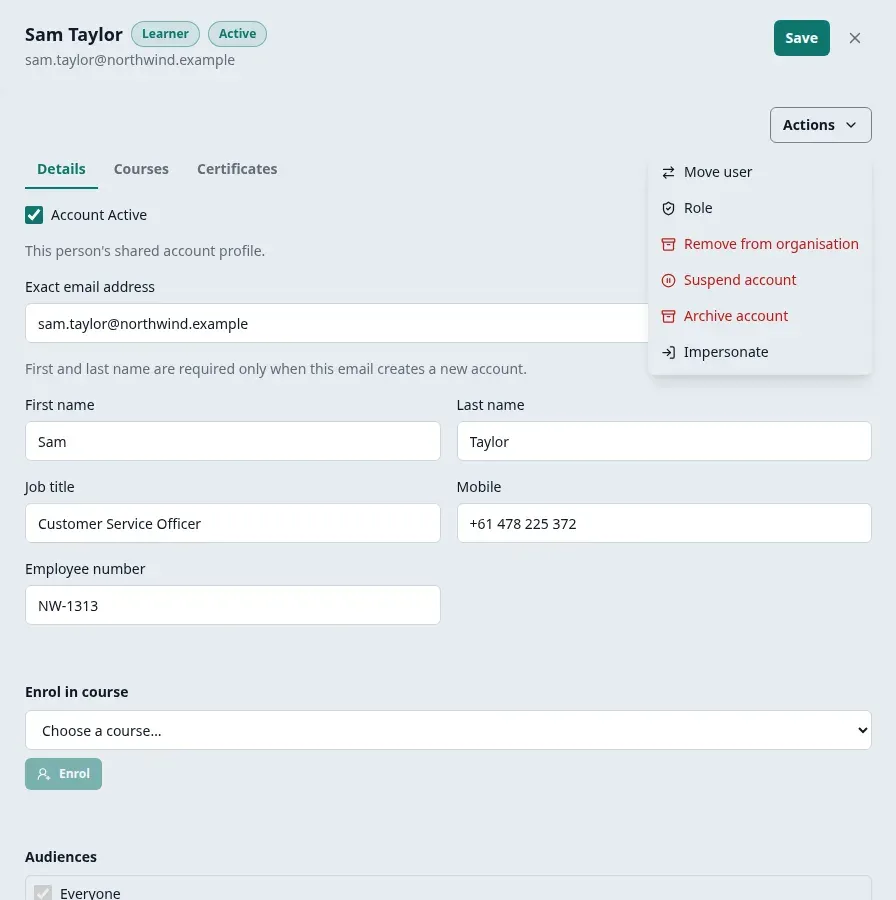
For anything else, choose Actions below Save (or … at the end of their row):
- Role: their role in this organization. Choose it and Update.
- Move user: moves their account to your organization or another beneath it. Search for the Destination organization, choose a Destination role if they have none there, tick the confirmation and choose Confirm move. Their role in the old organization goes; their other roles and their learning history stay.
- Remove from organisation: removes their role here. Their home organization can’t be removed; move them instead.
- Suspend account: the same as unticking Account Active. It stops them signing in, and keeps their memberships, enrolments and learner seat. Lift suspension undoes it.
- Archive account: for someone who has left. It frees their seat and moves them to Archived, where Restore account brings them back. Delete account appears there only for an account nothing refers to, such as a duplicate. If something still names the account, the delete is refused with the reason, and the account stays archived. Accepting the EULA for your organization doesn’t stop it: the acceptance is kept, with the person’s name and email as they were.
- Approve registration and Reject registration: see Invite links and registration.
- Impersonate: see Impersonate a user.
Every organization keeps an administrator
An organization that is switched on always keeps at least one active administrator of its own. Switching off, archiving, moving or demoting its last one is refused, with the reason shown: make someone else an administrator there first.
The other tabs
-
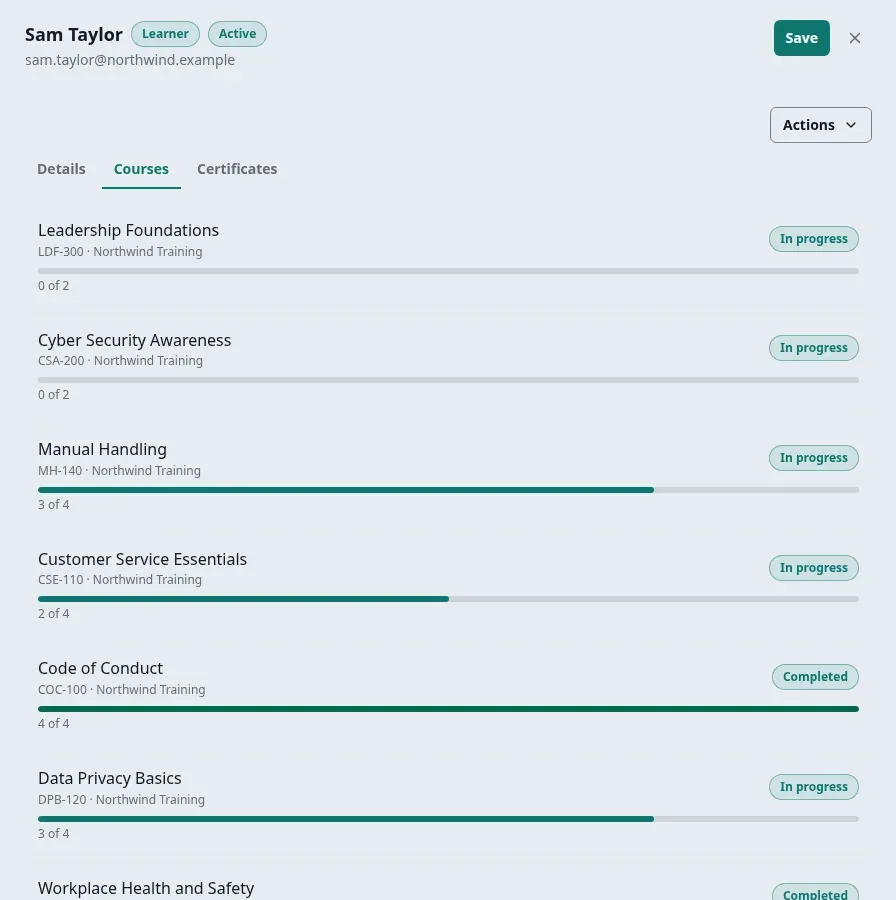
Courses lists what they are enrolled in, here and beneath, with its status (In progress, Completed, Withdrawn, Expired) and progress. Select a course to open it.
-
Certificates lists their certificates to Download. Replace and Revoke (with a reason, then Confirm revoke) appear on certificates your organization issued.
-
To enrol them, use Enrol in course at the bottom of Details (see Enrol learners in a course).
Good to know
- You can edit someone’s details only while their account is active and their home organization is yours or beneath it. Otherwise the slide-out is read-only; for someone from elsewhere, Home organization shows Another organization.
- An administrator can’t manage a global administrator’s account.
- Copy request pending beside a name means someone asked for a copy of this person’s learning history. Approve or decline it from Actions; nothing is removed from your organization.
- Audiences, under the person’s details, shows the audiences they are in. Tick or untick and choose Save audiences. Everyone is always ticked. Instructors change learners’ only.
If this didn’t help
Ask Nix to log a support ticket, or open Support under Need help?.
Copyright © 2026 Acadenix.com