
Email templates and email history
The Notifications tab decides which notification emails your organization sends and their wording, and holds its Automated Events (see Automate what happens when a learner does something). Email History shows what was sent.
How the emails are grouped
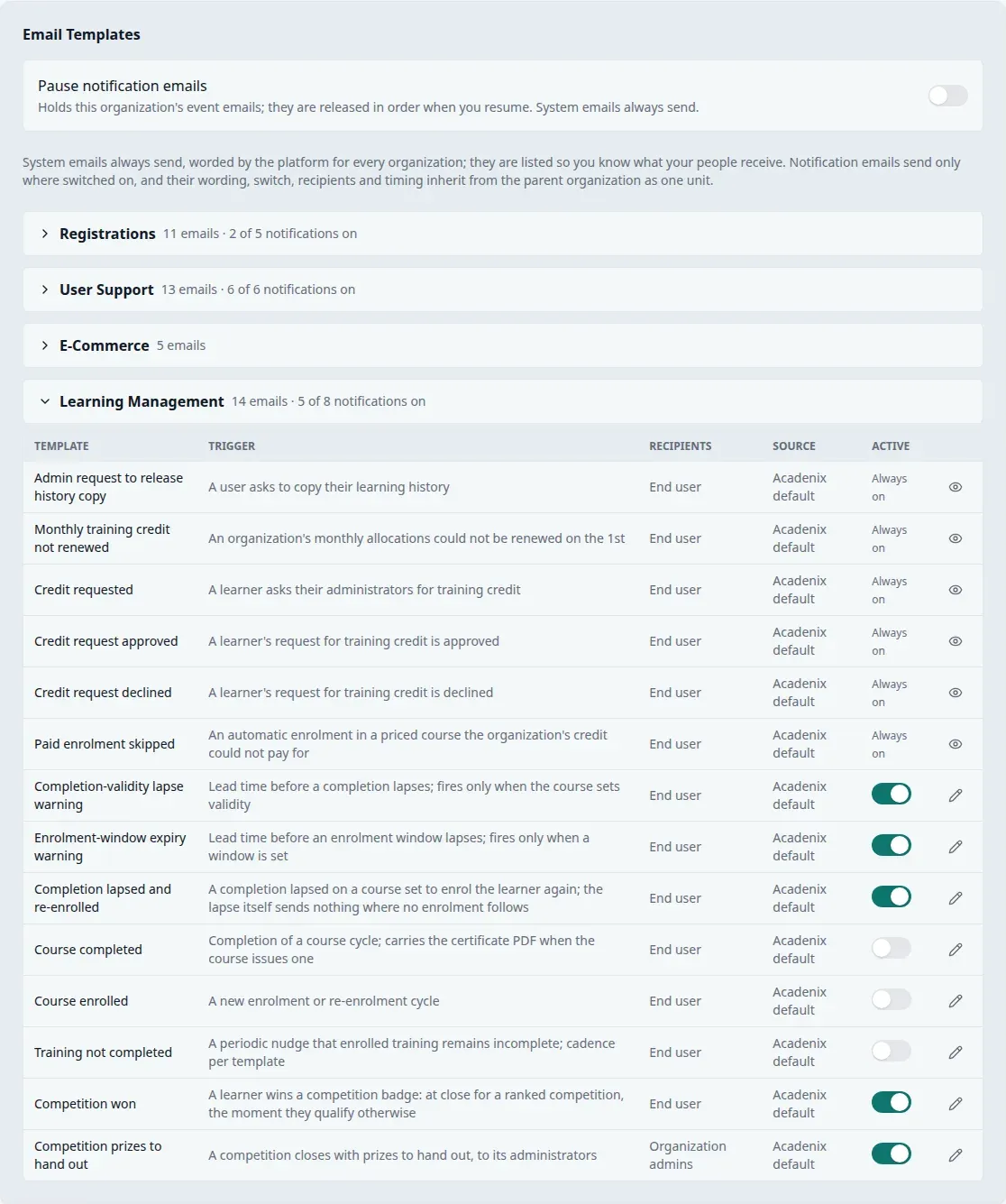
The templates are in up to five categories, each closed until you open it. A category’s heading says how many emails it holds and how many of its notification emails are on.
- Registrations: sign-in codes, invitations, new accounts and registrations, and new organizations.
- User Support: administrator recovery codes, Nix’s requests for support, a learning-history copy being requested and approved, and evaluations being requested, approved, declined and about to end.
- E-Commerce: activation links, refunds, price changes and low training credit for what you sell. Shown only if your organization sells courses.
- Learning Management: enrolments, completions, reminders, requests to release a learning-history copy, and learners’ training credit. Shown only if your organization has a Learning Management licence.
A category that isn’t shown still sends its emails as usual.
The emails your automated events send aren’t listed here. They’re under Automated Events in the same tab, in Emails these events send, beside the automated events that send them.
Change a notification email
-
In the sidebar, choose Settings, then the Notifications tab.
-
Open the template’s category. Switch a notification email on or off in the Active column, or choose the template’s pencil.
-
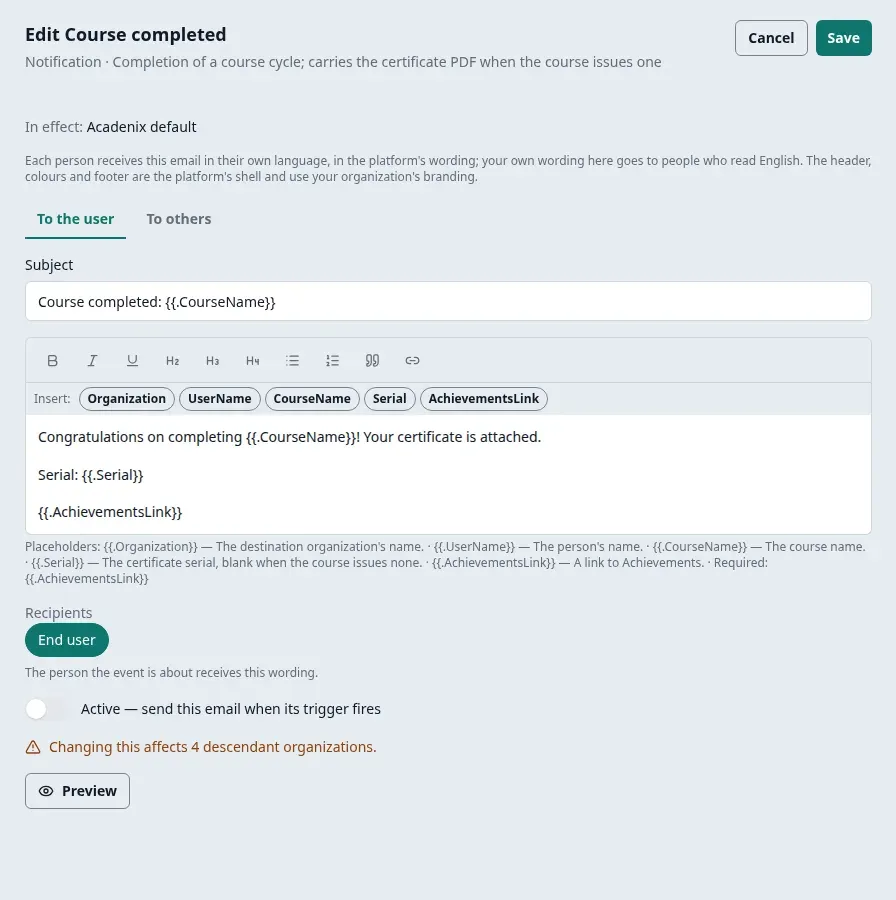
Choose To the user or To others, and change the Subject and Body. Insert: adds placeholders, filled in when the email is sent.
-
Under Recipients, choose who receives it: End user on To the user, Organization admins on To others. The support ticket emails have no Recipients: each goes to the people on the ticket that its trigger names, such as the administrators handling it.
-
Choose Preview to see it with sample values. Nothing is sent.
-
Choose Save.
Good to know
- System emails, such as sign-in codes and invitations, are always sent and worded by Acadenix. They read Always on and come first in their category. The eye beside one shows what your people receive.
- Organizations beneath yours use your notification emails, wording, switch and recipients together, unless they change their own. Changing anything, even the switch, makes the template yours. Restore Template goes back to the one from above.
- Off unless someone turns them on: Course completed, Course enrolled, User created, Training not completed, Registration approval request and New registration — FYI. The Source column says where each one’s setting comes from.
- Course completed attaches the certificate when the course issues one. Training not completed repeats every Remind every (days).
- A body must keep its required placeholders; the editor warns before you save. Course instructors currently sends to no one.
- Emails are in English, with your organization’s logo, name and colour.
- Pause notification emails holds your organization’s notification emails, and sends them in order when you switch it off. System emails still send, organizations beneath yours are unaffected, and held emails older than 30 days are dropped.
Email History
- Choose the Email History tab. It lists what was sent, held or failed in the last 30 days, for your organization and those beneath it.
- Narrow it by Organization, Template, State or Recipient, then choose Refresh.
- For a Failed notification email, choose Retry. A failed sign-in code can’t be retried: the person asks for a new one.
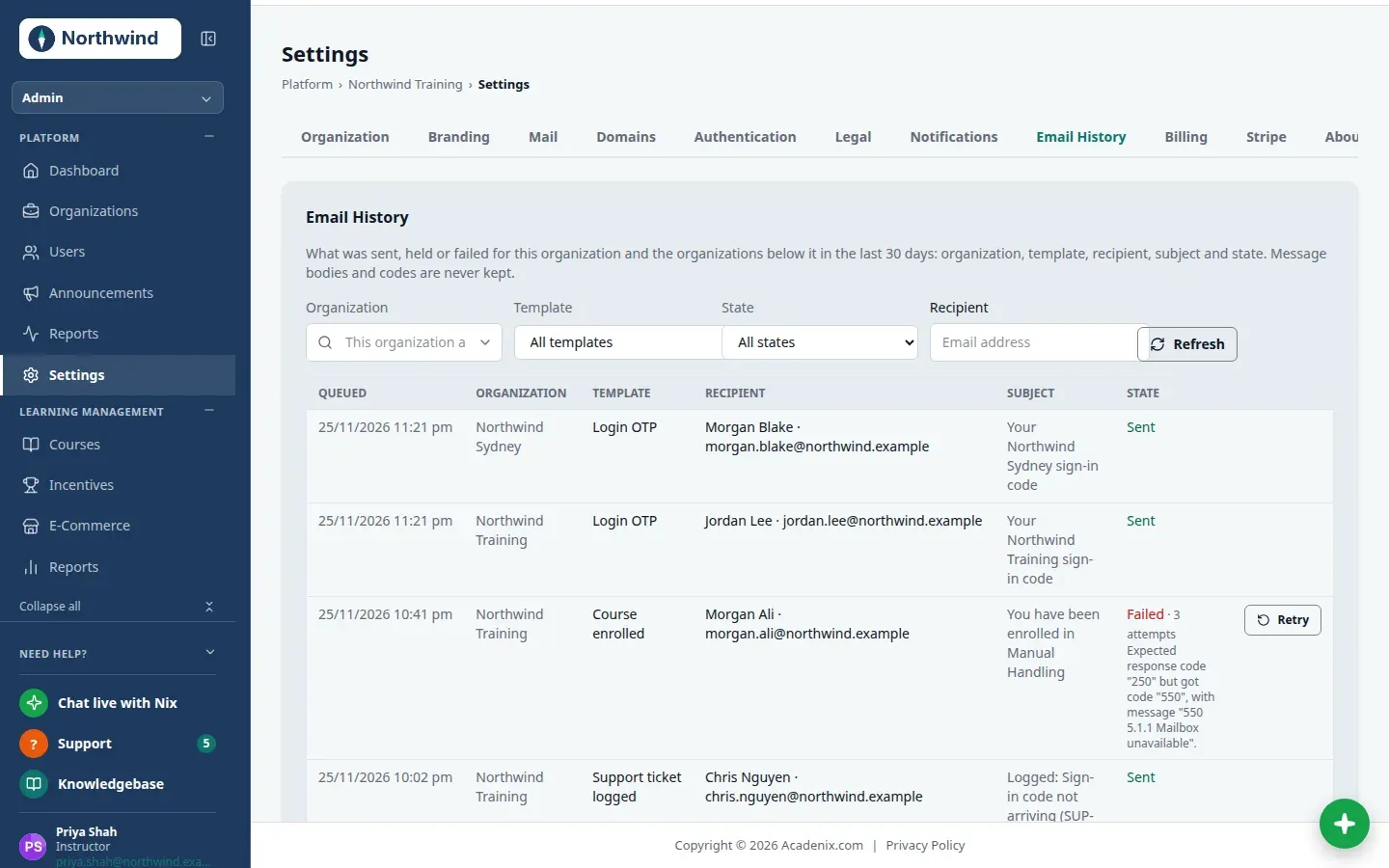
Only the latest 100 are shown, so narrow the filters to find older ones. Message bodies and codes are never kept.
If this didn’t help
Ask Nix to log a support ticket, or open Support under Need help?.
Copyright © 2026 Acadenix.com