
Organization settings, and what passes down to organizations beneath yours
The Organization tab of Settings holds your organization’s details and its organization-wide choices. Most settings pass down: an organization that hasn’t made its own choice uses the nearest one above it.
Steps
-
In the sidebar, choose Settings. The Organization tab opens first.
-
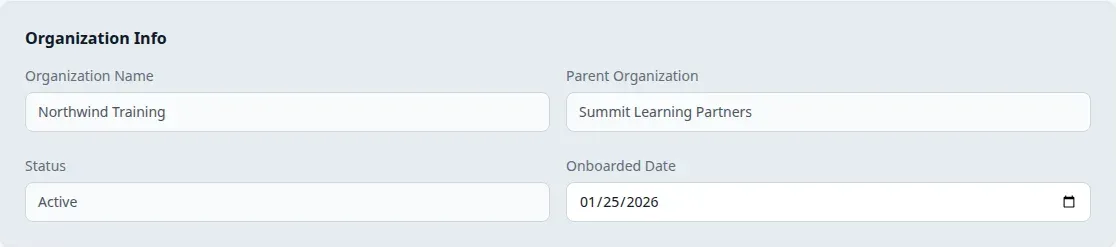
Under Organization Info, set the Onboarded Date if you need to, and choose Save Settings at the bottom of the tab. Only a global administrator can change the Organization Name and Status. Parent Organization is shown for reference.
-
Each other section has its own Save:
- Localisation: the Default language, Default notification timezone, Default date format and Default clock. Dates and times everywhere on screen, reports included, follow the date format and clock; report downloads keep yyyy-mm-dd so spreadsheets read them in any region. Organizations below follow yours unless they set their own, and people can choose their own on their profile. Without a choice anywhere, dates read dd/mm/yyyy on a 12-hour clock.
- Administrator sign-in restriction: the IP addresses or ranges your administrators may sign in from, one per line. Empty means no restriction. Learners are unaffected, and administrator recovery still works if a list turns out to be wrong.
- Sign-out: the Landing page after sign-out, an https address. Without one, people land on the login page.
- Word for people: what your organization calls the people who take courses, such as Students at a university. Organizations below follow yours unless they choose their own.
- Industry: the industry your organization works in, or one of its sectors, or All industries. Learners’ Courses page starts on courses for it, and the course maker dresses its avatars for it.
- Nix, AI help: see “Turn Nix, the AI help assistant, on or off”.
-
Under Certificates, Public certificate verification saves as soon as you tick or untick it. While it is on, anyone with a certificate’s serial can check it at the address shown.
How inherited settings work
Each inherited setting shows In effect:, its value, and where it comes from: Local (your own choice), Inherited from the organization directly above yours, Inherited from an organization above when it was set higher up (which one isn’t shown), or Acadenix default.
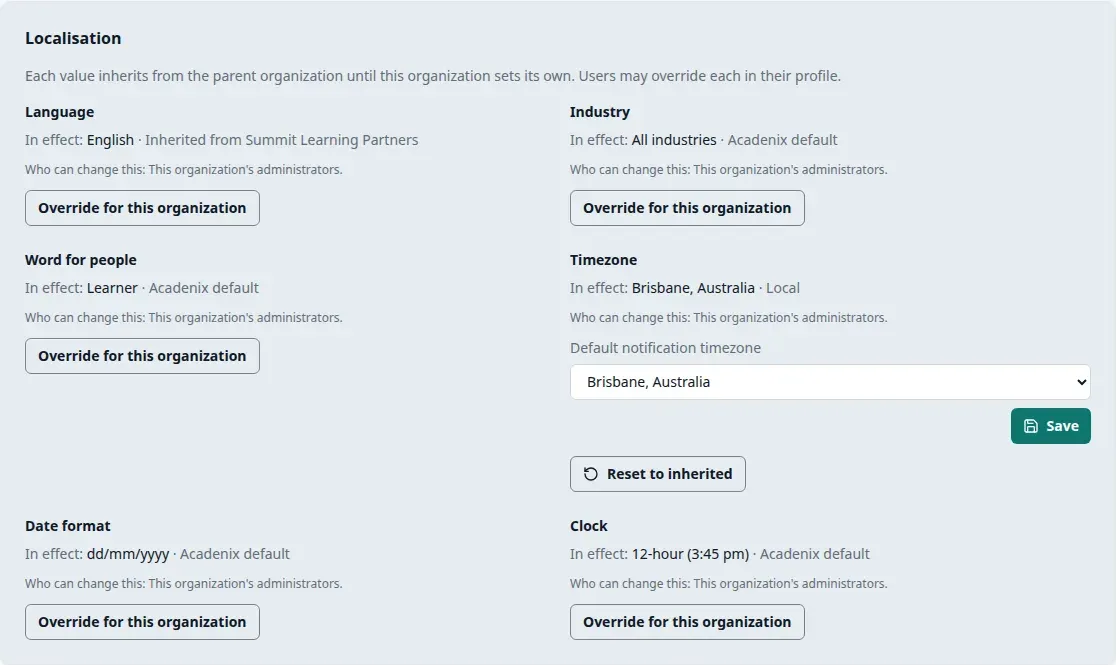
- To make your own choice, choose Override for this organization, change it, and save.
- Reset to inherited removes your choice, so you follow the organization above again.
- Organizations beneath yours follow your choice unless they have made their own. While any follow it, the page warns Changing this affects, with how many, before a change reaches them.
Good to know
- Inherited: language, word for people, industry, timezone, administrator sign-in restriction, sign-out page, AI help, branding (logo, favicon and theme), the mail server, the legal texts, notification emails, registration approval and invite links.
- Your organization’s own only: its name, status, onboarded date, address, platform subdomain, custom domains, email registration domains, public certificate verification and pausing notification emails.
- The Default language is what your people’s screens and emails are in, unless they choose their own on their profile, and what your sign-in page opens in. Certificates print in their course’s language, else this one. A line not yet translated shows in English.
- Word for people is what your screens and emails call the people who take courses: Learner, Student, Employee, Member, Participant or Contractor. Their role is still Learner.
- Every override and reset is recorded in the Activity report.
- Audiences, at the end of the Organization tab, lists your audiences and saves each change at once. See Decide who sees a course with audiences.
If this didn’t help
Ask Nix to log a support ticket, or open Support under Need help?.
Copyright © 2026 Acadenix.com