
See your course sales
Available on Silver and Gold
The Sales tab shows what each course sale brought your organization and the organizations beneath it.
Steps
-
In the sidebar, under Learning Management, choose E-Commerce.
-
Choose the Sales tab. The newest sales are first.
-
Narrow it by Course, Seller or Industry, or sort it by When or Margin. Industry shows sales of courses for that industry, its sectors included, and of courses for all industries.
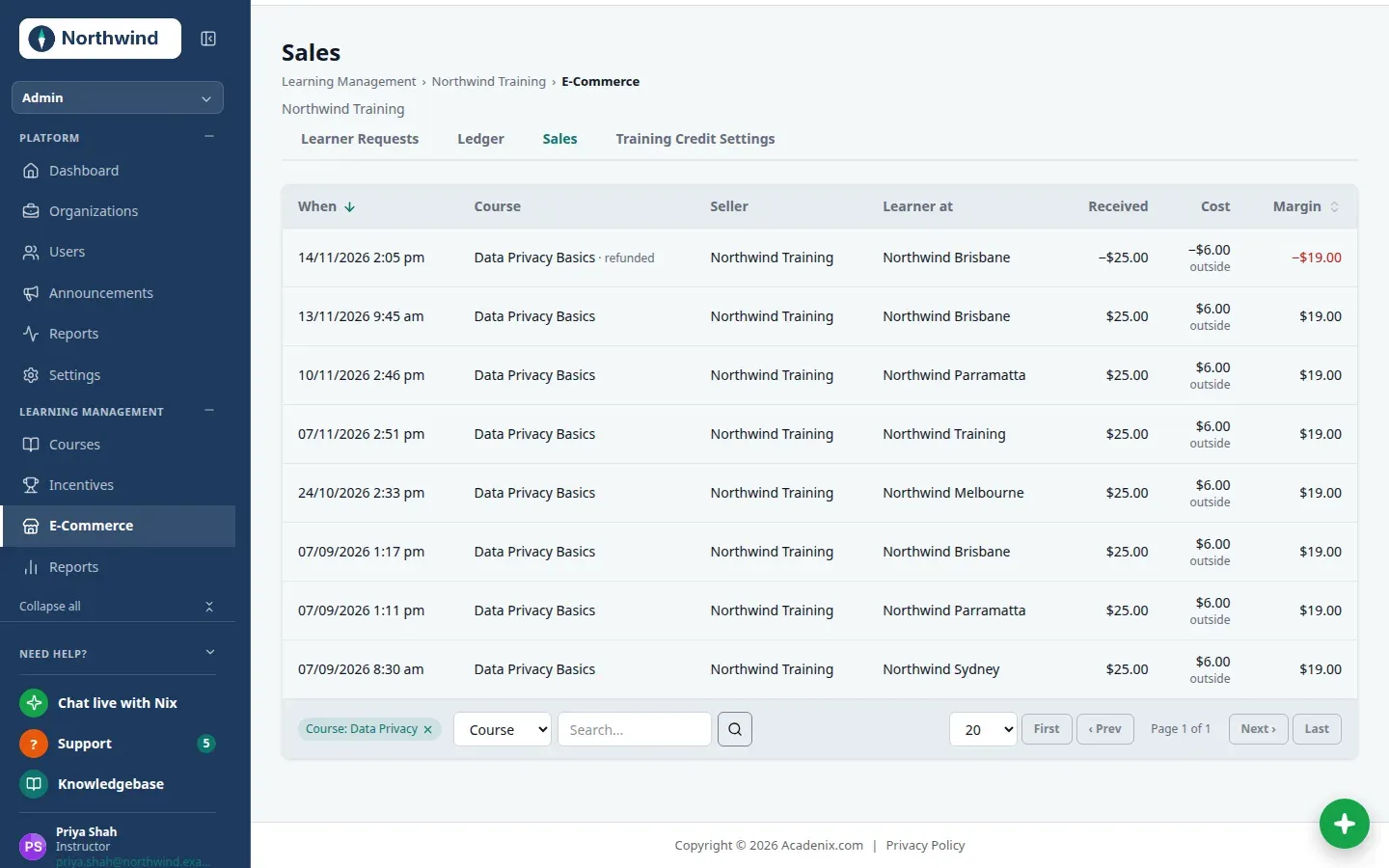
What each row shows
- Seller: the organization whose share the row is, yours or one beneath it. One sale has a row for each seller it passed through.
- Learner at: the organization of the learner the course was bought for.
- Received: what that seller was paid for it.
- Cost: what the course cost that seller. outside marks the cost per learner of a course you own: recorded, never charged.
- Margin: what it received less its cost. A negative margin, in red, is a loss, for example on a course you make free below you, or after the price above you rose and you haven’t raised yours.
Good to know
- Sales appears only when your organization sells: it holds its own Silver or Gold licence and has connected its own Stripe account. Every organization has the rest of E-Commerce, for its training credit.
- A refund adds a row marked refunded, with the amounts reversed.
- You never see the share of an organization beside or above yours.
- Money between sellers, what you owe the seller above and what sellers below owe you, is under Wholesale on the Stripe tab of Settings.
- To set prices, see Price a course, or make it free below you.
If this didn’t help
Ask Nix to log a support ticket, or open Support under Need help?.
Copyright © 2026 Acadenix.com